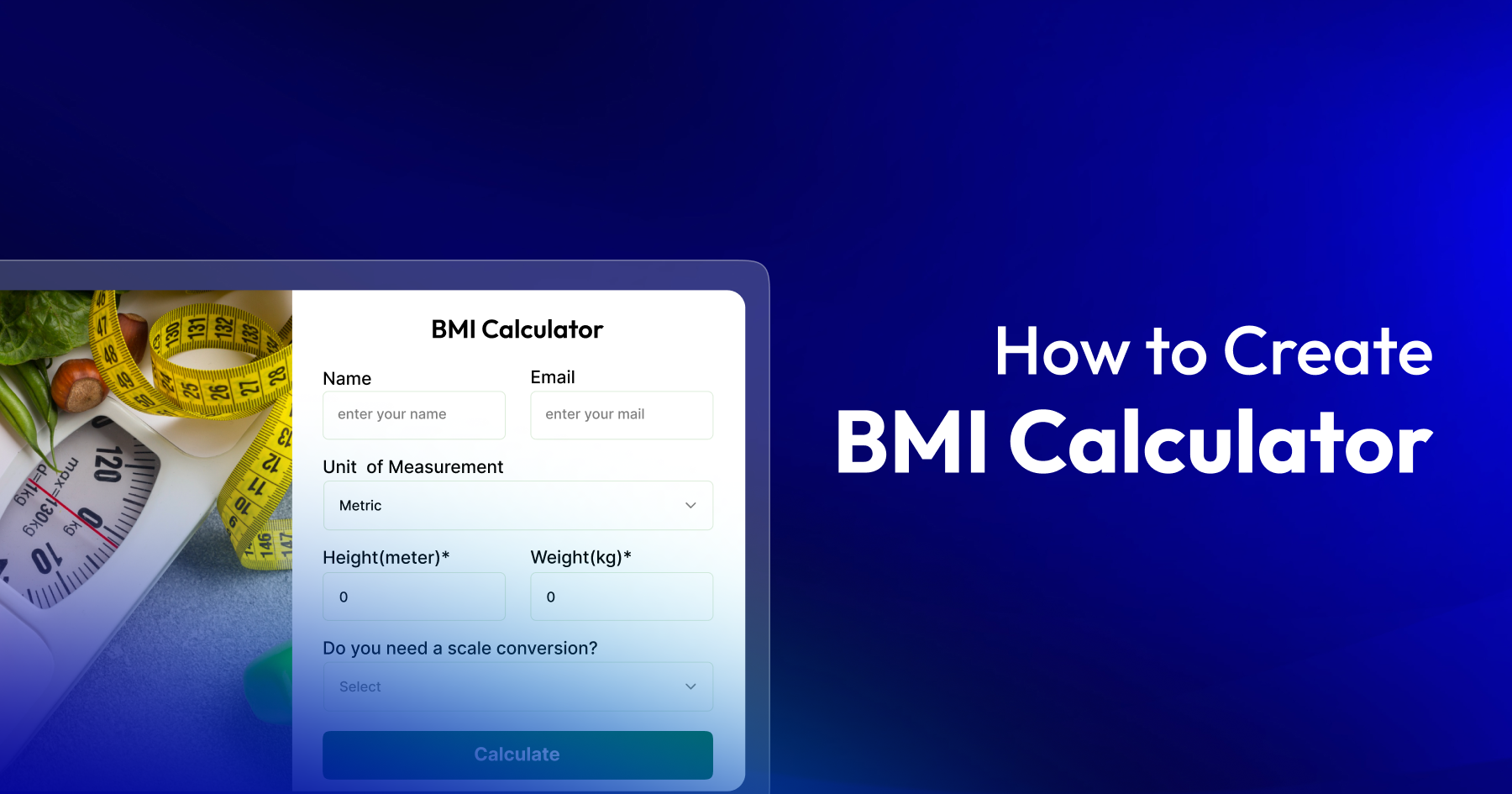
Do you have a fitness website, health blog, or maybe a clinic site and want to let people check their BMI easily? Or are you just tired of sending them to other random BMI sites that take them away from your page?
Well, you’re not the only one. WordPress users want to add a BMI calculator to their site, but it’s not always easy. Some tools need coding, and some don’t let you change much to match your website style.
But here’s the great part: you can actually make your own body mass index calculator right inside your dashboard. It looks clean, works smoothly, and you don’t even need to touch any code. In this guide, I’ll show you how to build one that not only gives the result but also provides users some health tips based on their input. Cool, right?

In this tutorial, we will explore how to create a BMI calculator form in WordPress. So let’s go!
A body mass index (BMI) calculator in WordPress form is a fun little tool that allows users to input their height and weight, and boom, it tells them their BMI score right away.
Whether you’re building a bmi calculator for men, bmi calculator for women, or a universal body mass index calculator, the core functionality remains the same. However, a custom WordPress BMI calculator can do much more than just show a number!
If you make a custom one, it can do even cooler stuff, like
Well, if you’re a fitness coach, a diet expert, a doctor, or someone who writes about health stuff, this kind of form can really help. It gives people something useful while helping you grow your email list.
Also, it’s an easy way to make your website more fun and helpful. People stay longer, learn something about their health, and may even return. That means more traffic and maybe even more money in the long run.
A health also helps establish your site as an authority in the health and fitness category.
Before building our form, let’s see the BMI formula and categories:
BMI Formula:
BMI Categories:
It’s easier than you might think. You just need a plugin that takes the user’s numbers, does the BMI math, and shows the result.
In this tutorial, I’ll use Bit Form to create our calculator. It’s a WordPress form builder that makes adding stuff like BMI calculators super simple. And the cool thing? Most of the features come with the free version, so you don’t have to spend a bunch of money to get started.
Ready to create your own BMI calculator in WordPress with support for various bmi calculator formulas in kg, cm, meters, feet, and other imperial measurements? Let’s dive into the step-by-step process:
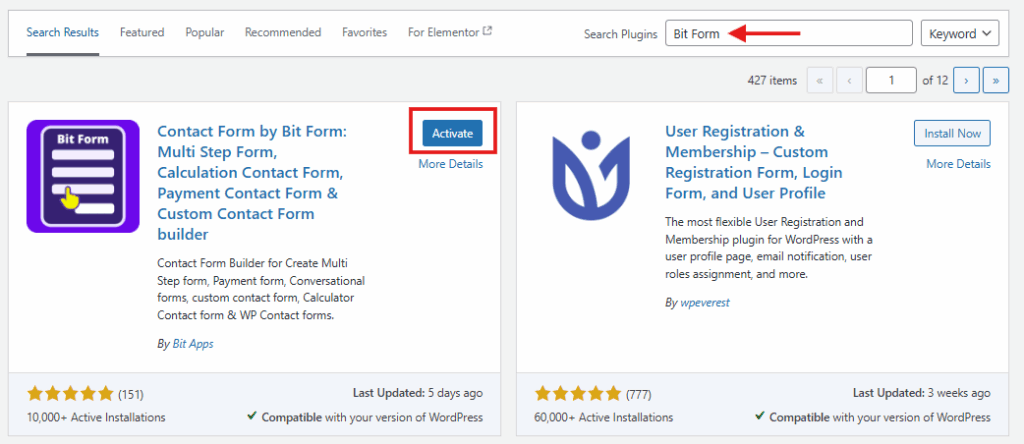
To get started with Bit Form on your WordPress BMI calculator, first access your WordPress dashboard. Navigate to “Plugins” and click “Add New.” In the search box, enter “Bit Form” and look for it in the list.
Once found, click the “Install Now” button, and when installation is complete, hit “Activate.” That’s it. Bit Form is now ready to help you build your BMI calculator in WordPress right from your WordPress admin panel.
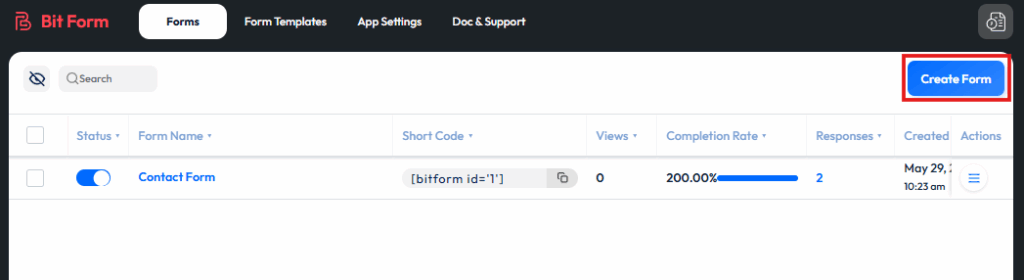
To start from scratch, choose “Blank Form,” which gives you full control over the design. Name your form something descriptive, like “Health Calculator,” to make it easy to find later.
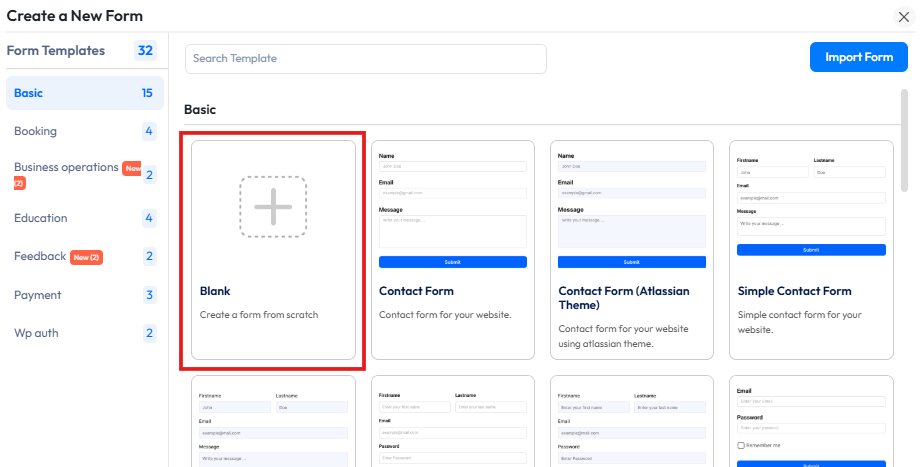
Now you’re ready to start building your WordPress BMI calculator form.
Now it’s time to add the basics. Just click or drag and drop any field you need into the form builder. Start with the Height and Weight fields, set them as number inputs, and you can configure these to support units like meters for height and kilograms for weight.
You can also add a Name field to make the form feel personal and an Email field if you want to send results or share health tips later.
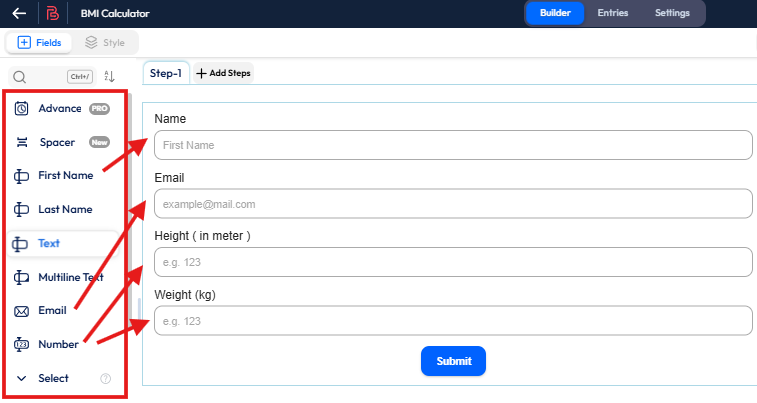
To make the process even easier, include a scale conversion section with extra number fields.
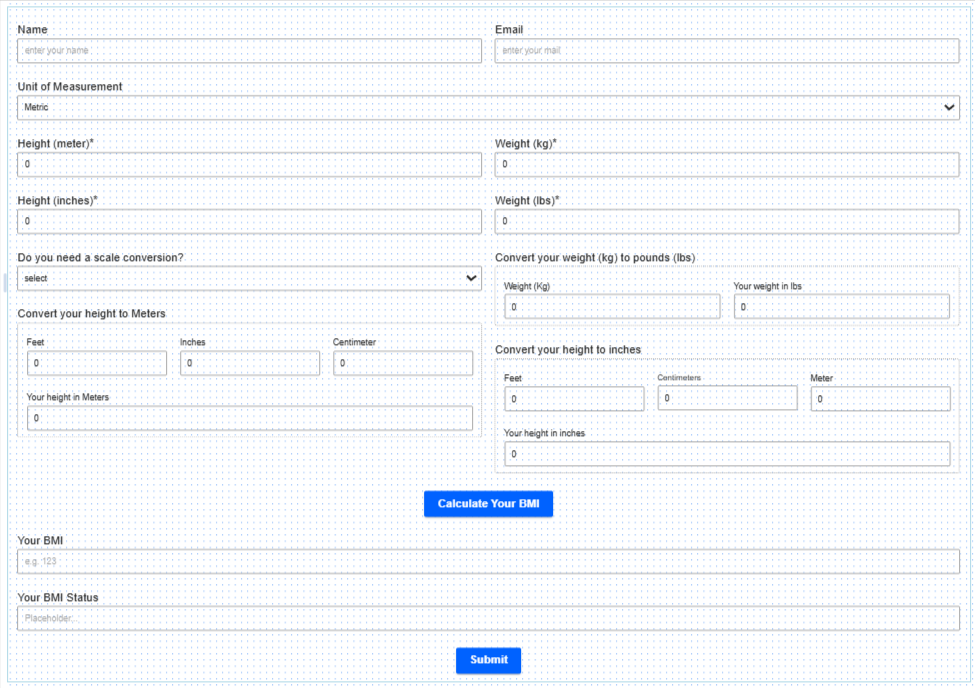
For metric unit conversion in your BMI calculator in WordPress, you need to add fields for feet, inches, and centimeters, along with a calculated height in meters as a number field.
And for imperial unit conversion, you need to add fields for feet, meters, and centimeters, along with a calculated height in inches as a number field.
This way, users of your WordPress BMI calculator who don’t know their height and weight in both units won’t need to leave the form or visit another site.
Don’t forget to add a “Your BMI” field as a Number field and a “Your BMI Status” field as a Text field. This allows users to see both their calculated BMI and the health category it falls under in your BMI calculator in WordPress.
 Note
Note
Bit Form offers advanced style editing options, allowing you to fully customize your form’s appearance to match your website’s theme.
1. Conditional Logic for BMI Result
After building your form, it’s time to add some conditional logic for the calculation. This helps the form respond based on the user’s input. You can set up any custom logic or formula you need. To get started, just go to Settings > Conditional Logics > Add Conditional Logic.

First, give your conditional logic a name. Then, set Action Run When to Record Create/Edit, and set Action Effect to Only on Field Input.
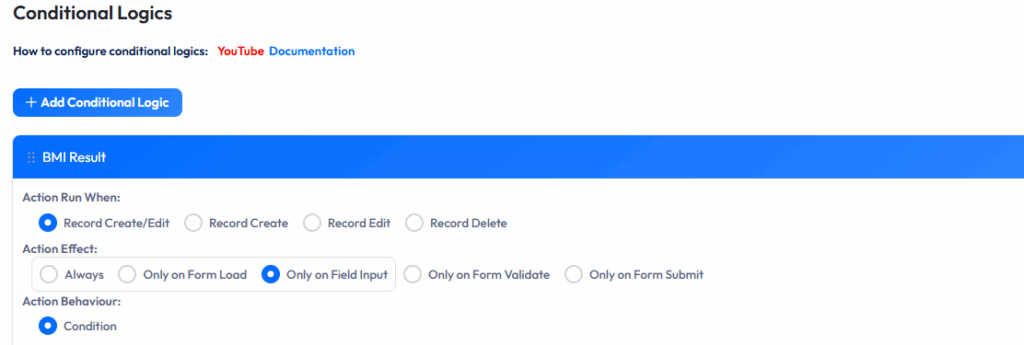
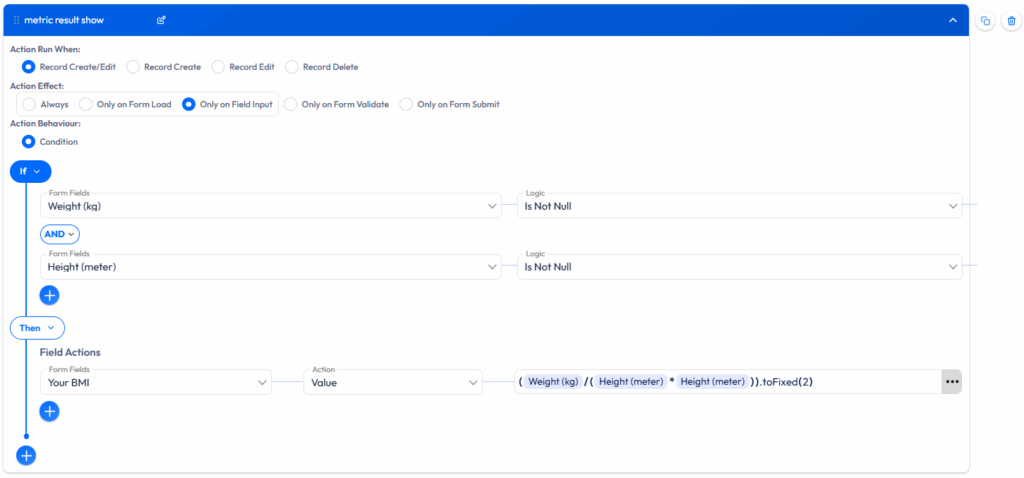
Now let’s set up the necessary conditions to make the form functional. We’ll start by creating the logic for the Your BMI field. Set the condition so that when both the Height and Weight fields are filled in, the logic will trigger automatically.
Next, in the Field Actions, select Your BMI and apply the BMI formula for metric units in the logic settings by setting the Value: (weight (kg) / (height (meter) * height (meter)))
Add another conditional logic for the imperial unit. Select Your BMI and apply the formula for imperial units in the logic settings by setting the Value: (Weight (lbs) / (height (inches) * height (inches))) * 703

2. Conditional Logic for Scale Conversion
Set the “Action Run When” option to “Record Create/Edit” and select “Only on Field Input” under “Action Effect.” The logic runs every time a relevant field is changed.
Next, configure the conditions under the IF section. Use two main conditions combined with AND logic:
Then, add several OR logic conditions to trigger the action when any of the related fields change. These fields include Feet, Inches, and Centimeters. Set each of these to “Change” so that the calculation runs whenever the user updates any of them.
In the “Then” section, set up the output actions. For the field, “Your height in meters,” set the action to “value” and use the formula: (Feet / 3.281) + (Inches / 39.37) + (centimeters / 100)
This converts all the provided height input into meters.
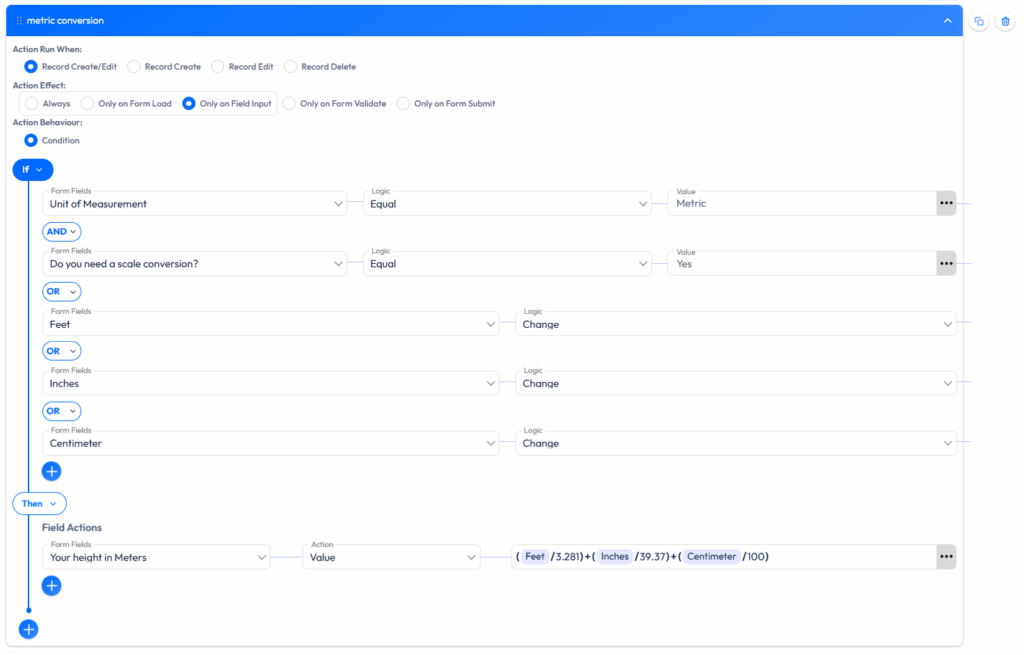
Set the “Action Run When” option to “Record Create/Edit” and select “Only on Field Input” under “Action Effect.” The logic runs every time a relevant field is changed.
Next, configure the conditions under the IF section. Use two main conditions combined with AND logic:
Then, add several OR logic conditions to trigger the action when any of the related fields change. These fields include weight (kg), feet, centimeters, and meters. Set each of these to “Change” so that the calculation runs whenever the user updates any of them.
In the Then section, define the output actions. For the field, “Your height in inches,” set the action to “value” and use the formula: (Feet * 12) + (Centimeters / 2.54) + (Meters * 39.37)
This converts all the provided height input into inches.
Then, for the field, “Your weight in lbs,” set the action to value and use the formula: Weight (kg) * 2.205
This converts the weight from kilograms to pounds.
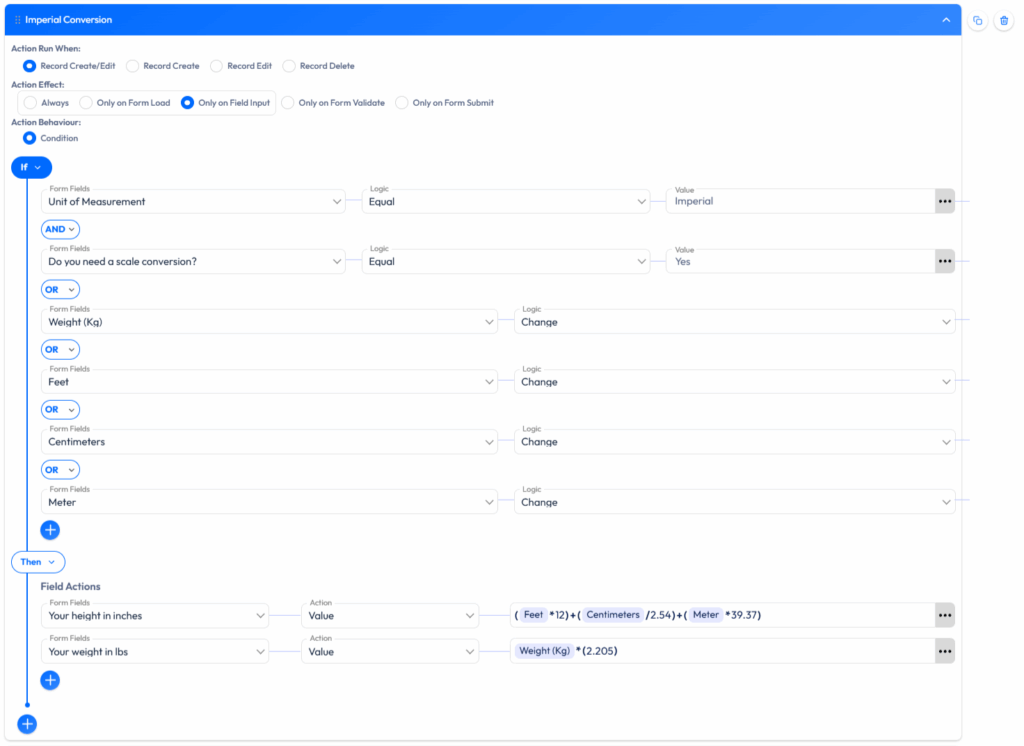
3. Conditional Logic for BMI Status
Now it’s time to set up the health category. Create a new conditional logic and name it “BMI Status.” Set the condition so that if your BMI is less than or equal to 18.5, then your BMI Status field will display “Under Weight.”
Similarly, select the Else if condition, and set the condition so that if your BMI is less than or equal to 24.9, then your BMI Status field will display “Normal.”
Again, select the Else if condition, and set the condition so that if your BMI is less than or equal to 29.5, then your BMI Status field will display “Overweight.”
Finally, create one last Else if condition and set the condition so that if your BMI is greater than 29.5, then your BMI Status field will display “Obese.”
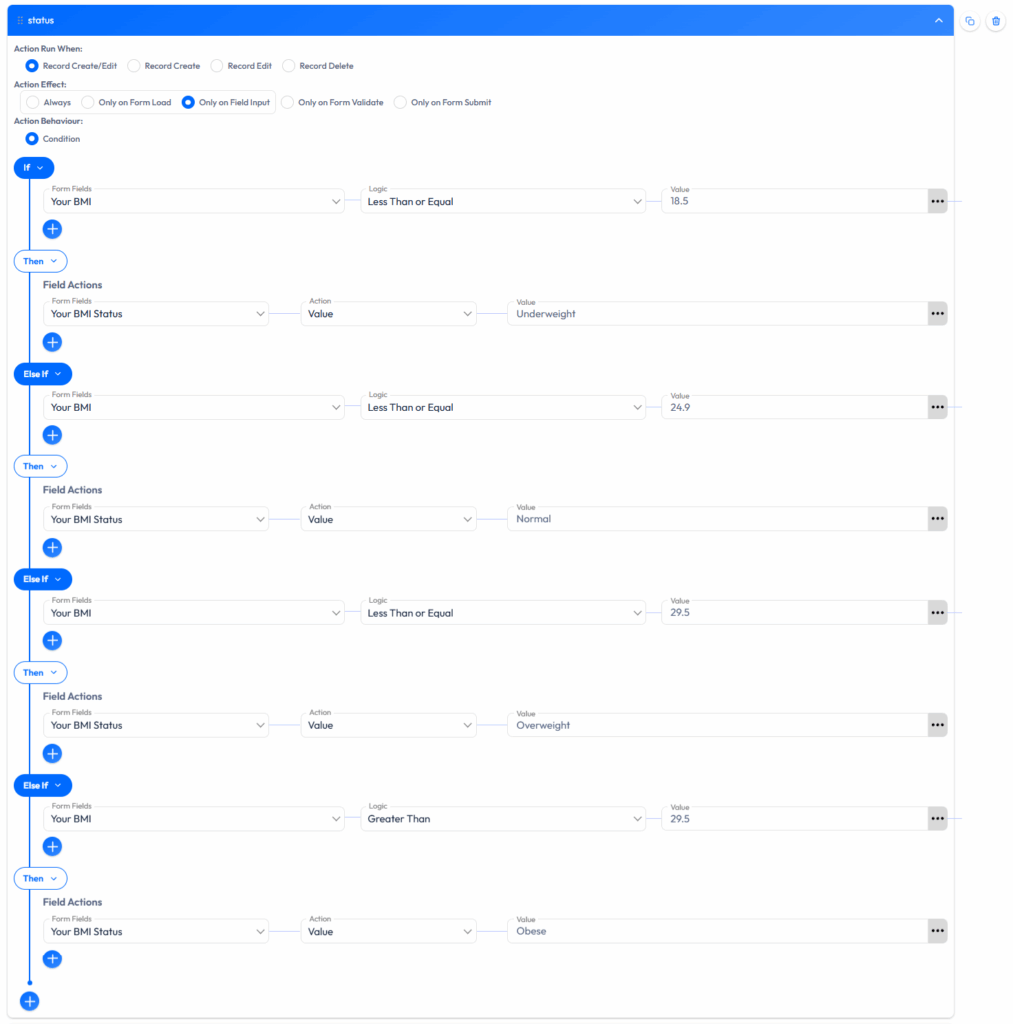
Once your form is ready, click the Publish button at the top-right corner. Then, copy the generated shortcode and paste it into any page or post where you want the calculator to appear. Your health calculator will now be live and ready for users to try.
And your form is ready to use!
Creating a BMI calculator form in WordPress doesn’t have to be complicated or expensive. With Bit Form, you can build a professional, fully functional WordPress BMI calculator that engages your visitors, provides valuable health insights, and helps grow your email list.
The drag-and-drop interface makes creating a BMI calculator in WordPress accessible even for beginners. Take a moment to explore all the features Bit Form offers; it’s packed with tools to help you build powerful and flexible forms with ease.
So go ahead and create any type of form that fits your needs, whether it’s a BMI calculator in WordPress, contact form, or something custom. With just a few clicks, you’re on your way to providing a smooth and user-friendly experience. Happy form building!
This can occur due to incorrect conditional logic setup. Ensure that:
1. Your calculation field must be a number field
2. Conditional logic triggers are properly configured
3. The BMI formula is correctly entered in the logic settings
Add email and name fields to your form and integrate with email marketing tools. Bit form plugins support integrations with services like Mailchimp, MailerLite, or ActiveCampaign for automatic list building.
You can configure the Email Notification settings to include calculated values like BMI and BMI status. These can also be exported through entries.
Enable Google reCAPTCHA from the Bit Form App Settings. This helps prevent bot entries and fake submissions on your WordPress BMI calculator.
Yes, Bit Form allows full customization of form colors, fonts, button styles, and spacing through the built-in style tab. You can also use custom CSS for more control.






 EN
EN  ES
ES  DE
DE