

 EN
EN  ES
ES  DE
DE  PT
PT  IT
IT  JA
JA How to Create a Reservation Form in WordPress with Payment Integrations

Are you a hotel or a restaurant owner? Then you frequently need to handle reservations. But the worst part? From picking up calls to using physical logbooks, it takes too much effort and wastes your time. So, if you are here to find out how to create a reservation form in WordPress, then you are at the right place.
The problem with most reservation form plugins is that they just create basic reservation forms. With the right form plugin like Bit Form, you can create advanced reservation forms within just minutes.
The pricing is also affordable. Want to find out how to create a stunning reservation form with payment integrations? Read this article to build advanced reservation forms in WordPress!
Table of Contents
Why You Should Create a WordPress Reservation Form?
Are manual reservations slowing you down? I am sure that you are already cramped with manually handling multiple reservations. Double reservations, typing errors, reduced productivity, and what not!
And it’s not just a small matter. Due to dealing with reservations manually, you almost cut off up to 20% of your profit. So, what’s the solution now? Well, a WordPress reservation form with PayPal or other payment integrations can make your task a lot easier! Want to learn how? Read the points below:
Save Time with Automated Reservation Collection
Are you typing customer information in a logbook for hours? It not only requires a lot of effort but also consumes a significant amount of your time. So, how can you save time using a reservation form?
Well, some WordPress reservation form plugin like Bit Form, allow you to integrate with CRM/tools or email marketing platforms that automate the whole process. Let’s be precise!
With a form plugin like Bit Form, you can direct customers’ information to your favorite platforms, such as Google Sheets, Zoho Sheets, and more. So, you won’t have to type into logbooks for several hours and waste your time. Reserving spots are easier now!
Reduce Human Errors with Reservation Management
Double Bookings, missed reservations, and manual calculation errors – it makes the whole process messy. But what could make this easier? With a form plugin, you can simplify the operation easily. From viewing the entries from one dashboard to creating an efficient workflow, the right form plugin can pull it all up.
Improve Customer Experience with Online Reservations
Have you ever handled customer reservations manually? Then you must have noticed that completing the reservation details gets frustrating for customers at times. And sometimes you make typing errors. The worst part here? It can make the management go completely wrong.
But don’t worry! With the right form plugin, you can provide a smoother experience to customers. You don’t need to type anything manually at all.
Optimize Management & Payment Workflow
Want to automate the reservation workflow? Maybe you want to send the customer’s data to a sheet. And again, you want to send a follow-up email to the customer confirming the reservation. So, won’t it be best to have workflow automation? A form plugin like Bit Form will help you automate the whole process.
Common Scenarios Where Reservation Forms Are Essential!
Are you still thinking about whether you should create a reservation form for your business? If you have a business where you need to frequently deal with customers’ calls, texts, or in-person interactions, then it’s a sure thing to have a reservation form on your website.
And if you are still confused, then you can see these points where I have mentioned the common use cases of reservation forms. This guide will help you make a quick decision:
1️⃣ Conference Meeting
Are you a business owner who frequently holds business or conference meetings? Whether you are a sales manager, investor, or business executive, you may need to organize conferences. But it is quite difficult to reserve an attendee’s spot manually.
Sometimes, you may need to attend the same call two/three times to confirm the reservation. It is just time-consuming. However, if you are already tired of dealing with frequent manual reservations, then you can create a reservation form to make your task easier.
2️⃣ Hotel Booking
Are you a hotel owner or a manager? Then you may take group reservations or same-day reservations. This leads you to collect advanced payments to reserve a room or spot for you. Handling multiple reservations together can create chaos – maybe you will create duplicate entries in the logbook.
Besides, you might also make typing mistakes while writing manually. So, you can use reservation forms to speed up the process.
3️⃣ Restaurant Reservation
As a restaurant owner, you have to secure a lot of customers’ reservations. Handling them manually can make you drained and tired. So, you can consider creating a reservation form with a reliable form plugin.
This will help you book spots fast. And you won’t have to worry about tracking or collecting payments securely. With the right plugin, you can add payment integrations to the form and collect advance payments.
4️⃣ Travel Booking
Do you own a travel agency? Then you have to book a lot of passengers’ spots daily. Instead of handling reservations manually, you can easily use a reservation form so that passengers can secure their spots without any hassle.
5️⃣ Event Registration
Are you an event planner? If yes, have you ever thought about how easy it would be to collect attendees’ information through a form? You won’t even have to make much effort. Simply install a good form plugin and create your reservation form right away!
Must-Have Features in a WordPress Reservation Form!
Creating a WordPress reservation form? It’s just not enough to simply create the form and toss it on your website! If you want to create an advanced reservation form, you must ensure that your form plugin has certain essential features. Here are some essential functionalities of a WordPress reservation form plugin that you must consider:
➥ User-Friendly Interface
Imagine you have found a hotel reservation form. But the form layout is not clean. The result? You might completely ignore the form. So, what’s the solution? You need to install a form plugin, such as Bit Form, as it is user-friendly and can adapt to different screen sizes.
➥ Advanced Customization Options
A reservation form must look visually appealing. But what’s holding us back? Well, most form plugins do not provide advanced customization options. So, when you want to create an attractive reservation form, you may encounter some limitations.
The solution? Install a form plugin that allows you to customize individual and common elements. Also, you can edit the field’s label based on your preference.
➥ A Wide Range of Payment Integrations
Imagine you want to reserve a seat for a conference. Now, you need to fill out the form to book your spot. The form offers very few payment integrations to customers. So, you are facing Stripe or PayPal reservation payment restrictions. As a result, you had to abandon the form.
Sounds disappointing, right? So, what’s the way out? You need to install a form plugin that provides a wide range of payment integrations. A form plugin like Bit Form offers payment integrations like PayPal, Stripe, Mollie, and RazorPay. Whether you want to make PayPal or Stripe deposit payments, you can smoothly complete your transaction with this form plugin.
➥ Automated Email Notifications
Ever had customers fill out the reservation form, only to discover much later? I know this makes you lose so many potential customers. They might not return to make the full payment anymore.
But no worries. With the right plugin, you can instantly get notified after getting a form submission. This helps you send quick follow-up emails so that the customer receives a confirmation.
➥ Fixed Amount
You need to set a fixed amount so that customers can easily pay the advance and book their spot. The best part here? Customers will know exactly how much they need to pay. And the payment processor will deduct the same amount. This simplifies the whole process.
Easily Create a WordPress Reservation Form with Payment Integrations!
Want to create an advanced WordPress reservation form? Here, I am using the Bit Form plugin to create the multi-step form as it is highly customizable and user-friendly. Check out the step-by-step guide below:
Step 1: Install the Bit Form Plugin
At first, go to your WordPress dashboard > Plugins. Then search for the Bit Form plugin. Install and activate it.
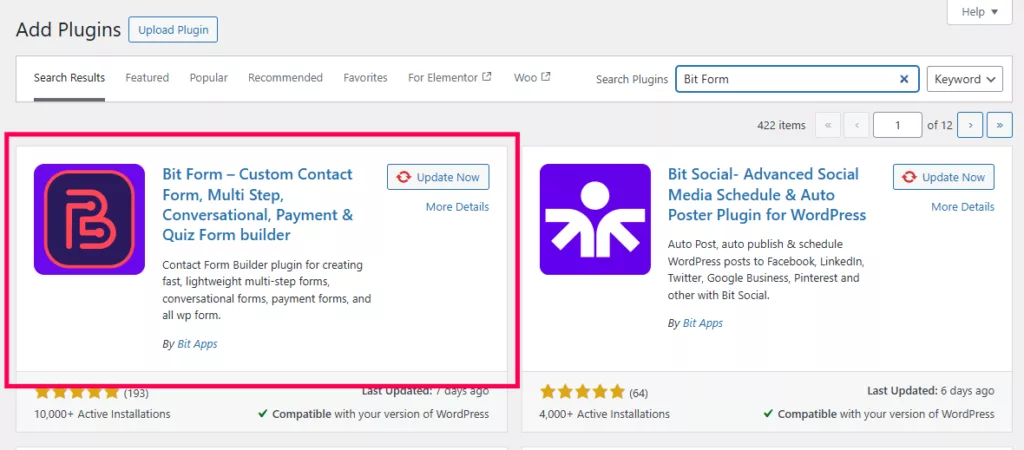
You can also install it manually. Download the plugin ZIP from the Bit Form website and upload it via Plugins → Add New → Upload Plugin.
Step 2: Click on Create Form
Then go to the Bit Form dashboard, click on ‘Create Form,’ and select ‘Blank’ to start from scratch.

Step 3: Set the Title and Subtitle
To add a title, simply drag and drop the title field from the Bit Form field list. You also have the option to add a subtitle.

Step 4: Add Fields for Personal Information
Include fields such as:
- First Name
- Last Name
- Email Address

Step 5: Add Relevant Fields and Conditional Logic
Now drag and drop the “Select” field to allow users to choose their room type.
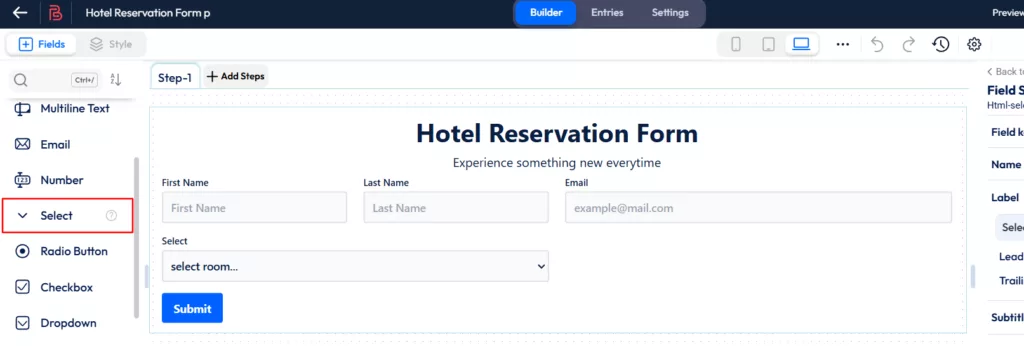
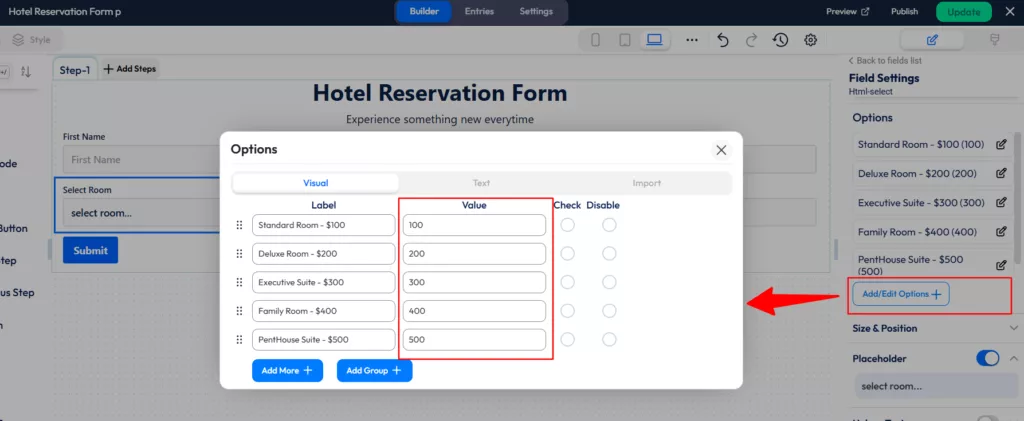
Click on “Add/Edit Options” to enter the room types. In the “Value” field, input the corresponding room prices so that they can be used for calculations later.
Now, I’ve added two date fields: one for the arrival date and the other for the departure date. The arrival date allows customers to specify when they will check in, while the departure date lets them choose their intended checkout date.

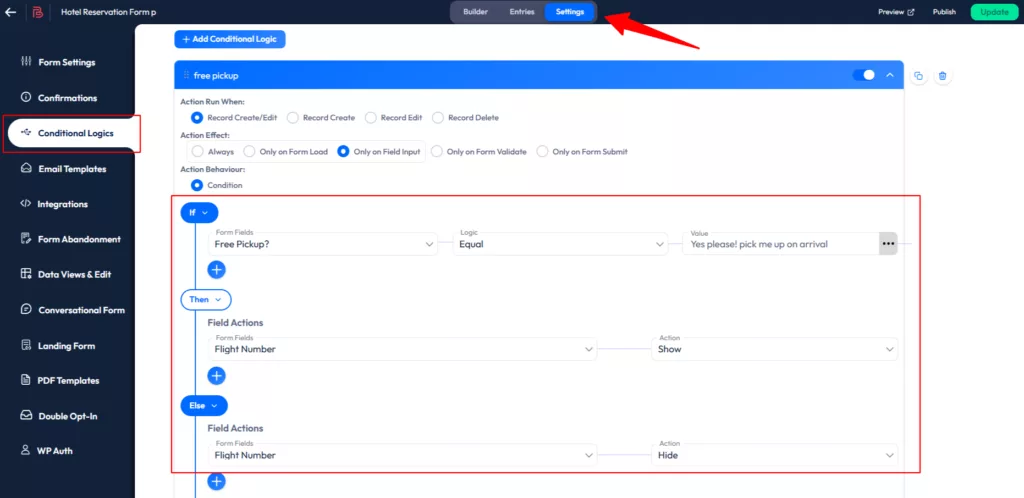
In this step, I’ve added a radio button field for the pickup option. If the guest selects “Yes, please pick me up on arrival,” the flight number field becomes relevant, so I’ve added a number field to capture the flight number.
To keep the form clean, I’ve set the flight number field to hidden by enabling the “Hidden” option in the field settings.
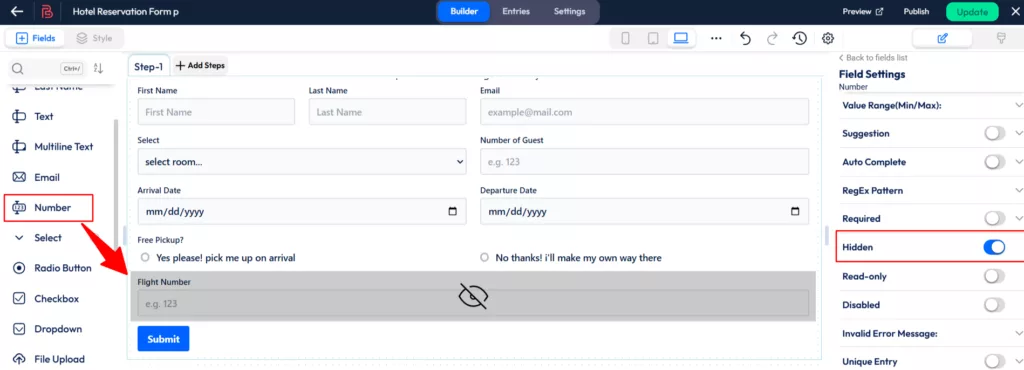
Next, go to the Settings tab and enable conditional logic. This logic ensures that the flight number field will only be visible if the guest selects the “Yes, please pick me up on arrival” option. If they choose “No thanks, I’ll make my own way there,” the flight number field remains hidden.
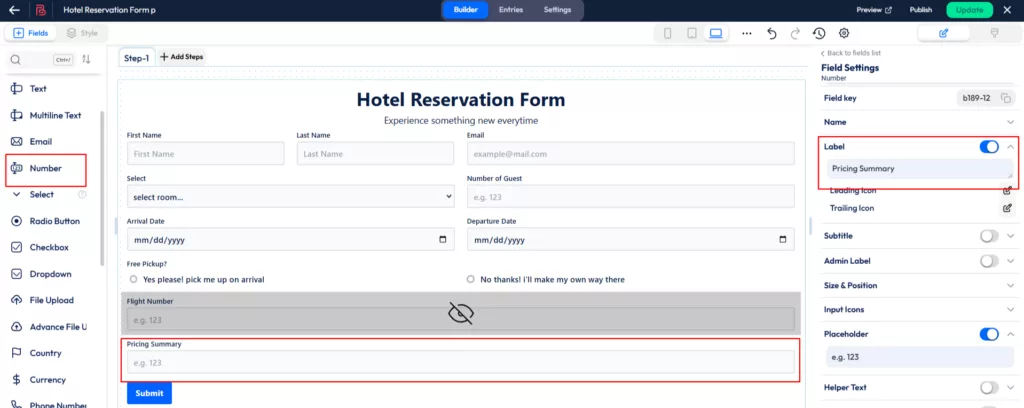
Now, I’ve added a number field and named it “Pricing Summary”. This field will display the rent or total cost for the reservation.
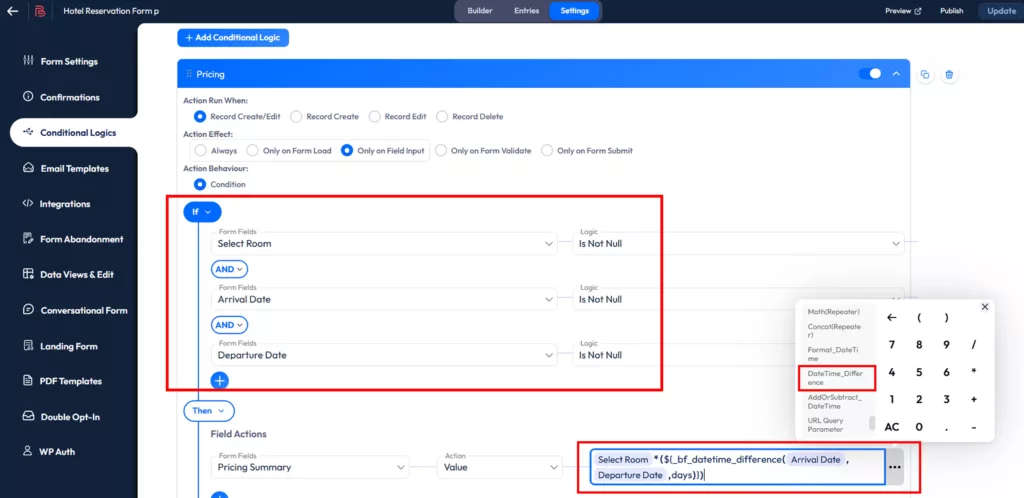
To show the pricing based on the room type and duration, you need to add a conditional logic for calculation. Here are the steps to set it up:
- Go to the Settings tab and click on Conditional Logic.
- Set the condition as follows:
- If Select Room, Arrival Date, and Departure Date are not null.
- In the Action field, for Pricing Summary, use the smart tag to calculate the total cost:
Select Room * (${_bf_datetime_difference(Arrival Date, Departure Date, days)}).
The smart tag ${_bf_datetime_difference(Arrival Date, Departure Date, days)} calculates the number of days the guest will stay. Bit Form provides additional smart tags to simplify your calculations
Step 6: Add Payment Field
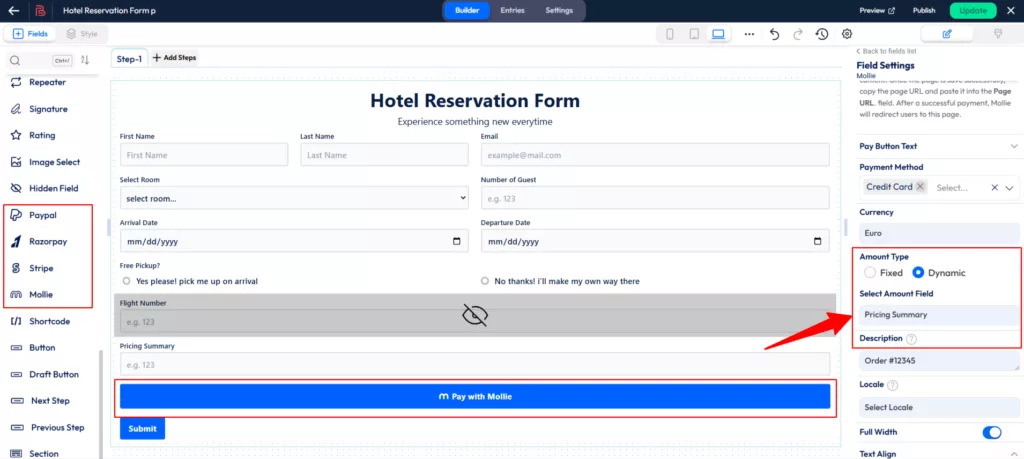
For the payment setup, I’ve added a Mollie payment field to the form. In the Amount Type settings, I’ve selected Dynamic and linked the Pricing Summary field, which calculates the total amount for the reservation.
To integrate with the payment options, Bit Form provides various payment methods. The setup for each payment gateway can be found in the detailed payment setup documentation.
Step 7: Design Your Form
If you want to add a background image on top of the form, select the “Section” field.

Then, click on Style and select Field Container. On the right side, you’ll find the Background option. Click on it and upload your desired image to set it as the background for the section.
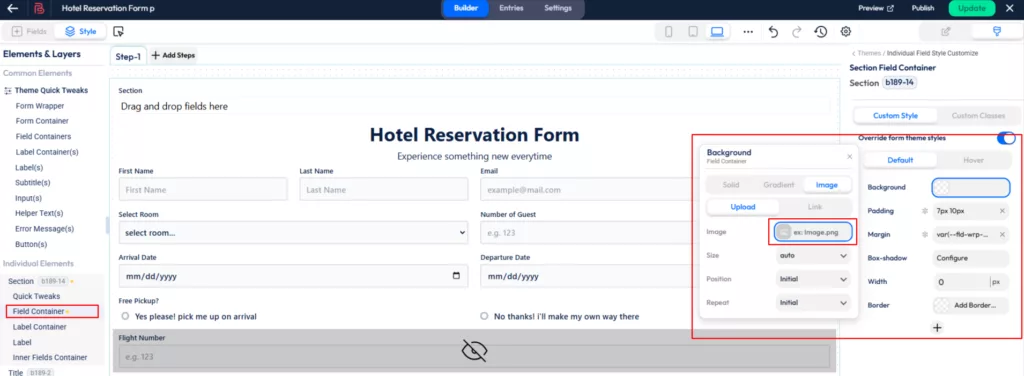
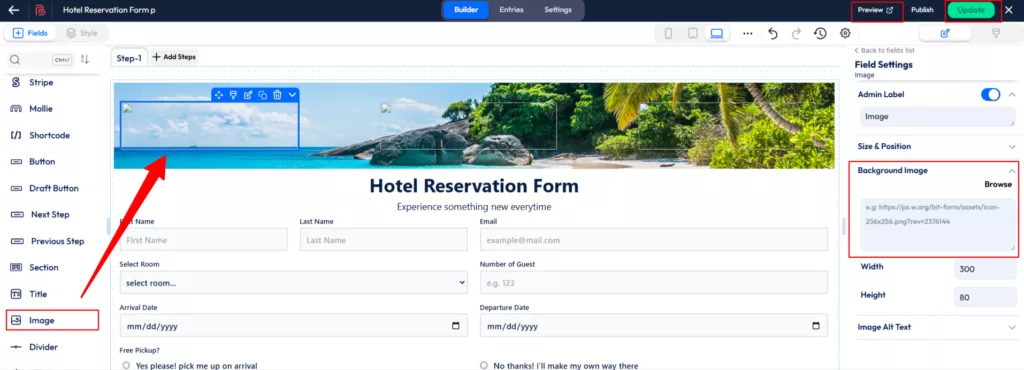
You can also add multiple images to the Section field to enhance the design, such as showcasing different views of the hotel rooms.
To do this, drag and drop the Image field into the section field. On the right side, you’ll see the Background Image option, where you can upload and set the image you want to display. This allows you to give your form a more visually appealing and customized look.
 Note
Note
Bit Form offers advanced style editing options, allowing you to fully customize your form’s appearance to match your website’s theme.
Step 8: Test The Form
Here is the form that we have built throughout the article. You can test it live from here.
How to Automatically Manage Reservation Submissions on WordPress?
Getting tons of reservation requests? Honestly, I’d go nuts handling so many responses at once. Especially, if your form plugin does not provide any option to automate these submissions, then you are definitely on the wrong track. So, what’s the way out here?
Well, some form plugins allow you to automate the whole management process in just a few simple steps. Want to learn how? Read these points below:
Sync Reservation Data
Do you want to store the reservation form responses in an organized way? Imagine you have a hotel reservation form where you get multiple information, such as check-in date, check-out date, number of guests, room type, special requests, etc.
Tracking so much information at once can get frustrating, right? So, what’s the solution? You can install a form plugin that integrates with tools like Google Sheets, Zoho Sheets, etc, so that you can track your data easily.
Trigger Follow-Up Emails
Have you ever wondered how easy it would be to automate the whole follow-up process? Yes, it is possible. You can integrate various CRM/email marketing platforms into the form and send customers automated emails. You can also schedule campaigns for future purposes.
Why Use Bit Form to Create Reservation Forms?
Bit Form is an advanced form builder designed to create beautiful reservation forms in just minutes. Want to design the reservation form uniquely? This form builder provides you with a theme customization feature that allows you to style the form just the way you want.
And want to make the payment process smoother? This form builder allows you to set a fixed amount so that customers pay exactly the amount you want in advance. The pricing is super affordable, too. Whether you are a beginner or an expert, this form builder adapts to different business needs and budgets.
Want to learn more about this form builder? Then feel free to contact us right away!
Conclusion
Good layout, advanced customization options, and user-friendly design – finding these elements in one plugin seems tough, right? But it won’t have to be that hard. With the right form plugin, you can create beautiful reservation forms in a snap.
The Bit Form plugin provides you with multiple payment integrations, including Stripe & PayPal. Also, you get premium features at a reasonable price. Sounds perfect, right? You can contact us here to know more about it.
FAQs
How do I create a reservation form in WordPress?
You can create a reservation form in WordPress using a form builder plugin like Bit Form. Simply install the plugin, add form fields, enable payment integrations, and publish the form.
Can I accept payments through a WordPress reservation form?
Yes, you can collect advance or full payments using payment integrations like Stripe, PayPal, Mollie, or Razorpay directly from your WordPress reservation form.
Is It Safe to Accept Reservation Fees Directly Through a Form Plugin?
Yes. It is safe to accept reservation fees directly through a form plugin. But you need to ensure that the form plugin has a secure reservation payment gateway for WordPress, like PayPal & Stripe. It protects customers’ financial information and helps them complete transactions safely.
Which plugin is best for WordPress reservation forms with payments?
Bit Form is a powerful WordPress form builder that supports reservation forms with Stripe and PayPal payments, conditional logic, automation, and advanced customization.
Can I automate confirmation emails for reservation forms?
Yes, most advanced WordPress form plugins allow automated email notifications so customers instantly receive reservation confirmations after form submission.
Is it possible to set a fixed deposit amount in a reservation form?
Yes, you can set a fixed reservation or deposit amount using payment fields, ensuring customers pay a specific amount before confirming their booking.
Can reservation form data be synced with Google Sheets?
With integrations like Google Sheets or Zoho Sheets, reservation form submissions can be automatically synced, making reservation management easier and more organized.

Related Blog

How to Add a “How Did You Hear About Us” Survey in WordPress

How to Prevent Spam Form Submissions in WordPress