Why Isn’t My WordPress Form Sending Emails? Fix It With AI
A customer submits your contact form, sees a success message, and waits for a reply. But the email alert never reaches you. Unless you check your submissions, you might not realize someone is waiting.
Bit Form’s AI Assistant can help you investigate. Its “/email” command prompts the assistant to examine the form’s notifications, the workflows that trigger them, and the recent email log for clues.
In this guide, you’ll learn how to fix a WordPress form not sending emails: check notification settings, investigate SMTP issues, and test whether your emails arrive.
TL;DR
Your WordPress form can accept submissions even when its email notification fails. Common causes include an inactive notification, an incorrect sender or recipient address, an unmatched condition, an SMTP error, or spam filtering.
- Find the cause. Open the affected form in Bit Form, click Ask AI, and run
/email. The assistant reviews notification settings, workflows, and recent email logs for clues. - Apply the fix. With Read and write access enabled, ask the assistant to update a supported setting, such as turning on the Admin Notification. Review the proposed change and click Apply. If the findings point to SMTP or your email provider, check those settings separately.
- Confirm delivery. Submit a fresh test entry that matches any notification conditions. Check the email log, then confirm the message arrived in the intended inbox or spam folder.
Why Is Your WordPress Form Not Sending Emails?
A WordPress form usually stops sending emails because the notification is inactive, the sender or recipient address is wrong, a condition does not match, the site sends mail without proper SMTP authentication, or the message is filtered as spam. Check the notification first, then SMTP, then spam and provider records.
A successful submission and an email notification are separate parts of the process. Your form may accept a response while a notification setting or mail delivery issue prevents the alert from reaching you.
Start with these possible causes:
| Possible cause | What to check |
| Inactive notification | Confirm that the email template’s Active Status is on. |
| Incorrect recipient | Check the To address for typos or an incorrectly selected email field. |
| Incorrect sender | Verify that From Mail uses an address your email provider allows you to send from. |
| Unmatched condition | Check whether the submitted answers satisfy the notification’s conditional logic. |
| Missing or incorrect SMTP setup | Review the connection settings and any authentication or sending errors. |
| Spam filtering or rejection | Check the recipient’s spam folder and your email provider’s delivery records, where available. |
In Bit Form, an active notification without a condition runs after every successful submission. If a condition controls the notification, that condition must match before it sends. Bit Form also recommends configuring SMTP before relying on email notifications.
These checks help you narrow down whether the email was triggered, whether sending failed, or whether delivery needs further investigation.
Before You Start Troubleshooting
Before asking AI to investigate, get these basics ready:
- Confirm the submission succeeds. Submit a test response and check for validation errors. If entry storage is enabled, check whether the response appears in Bit Form.
- Open the affected form. Have access to its builder and notification settings so you can review what the assistant finds.
- Enable the AI Assistant. An administrator must switch it on under Bit Form → App Settings → AI Assistant and connect a supported AI engine.
- Choose the appropriate access level. Read-only lets the assistant inspect settings. Select Read and Write if you want it to update supported notification settings. Builder changes remain previews until you click Apply.
If you haven’t configured the assistant yet, follow our AI-powered WordPress forms guide first. Then return to the affected form to begin troubleshooting.
How to Troubleshoot WordPress Form Emails With Bit Form’s AI Assistant
Start with the affected form so the assistant can investigate the right notification.
Step 1: Open the Affected Form
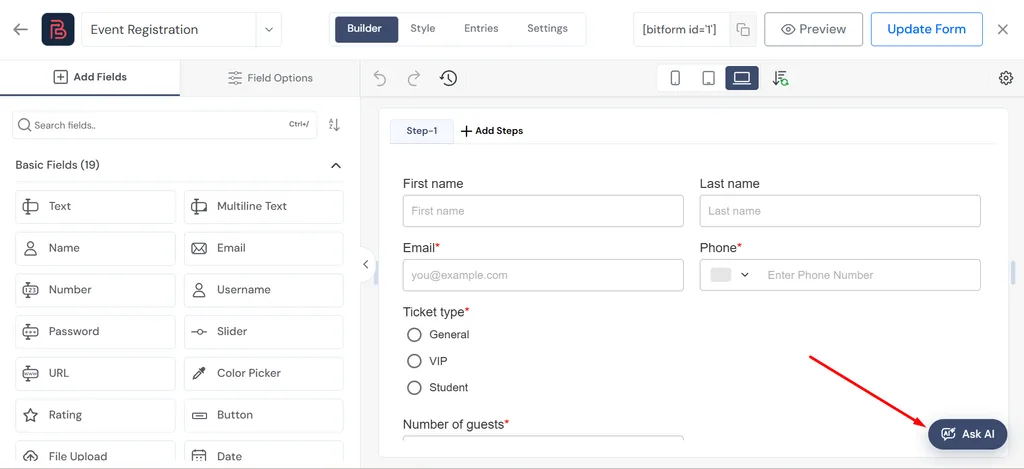
From your WordPress dashboard, open Bit Form and select the form that is missing email alerts. Keep it open in the builder.
Step 2: Run the /email Command
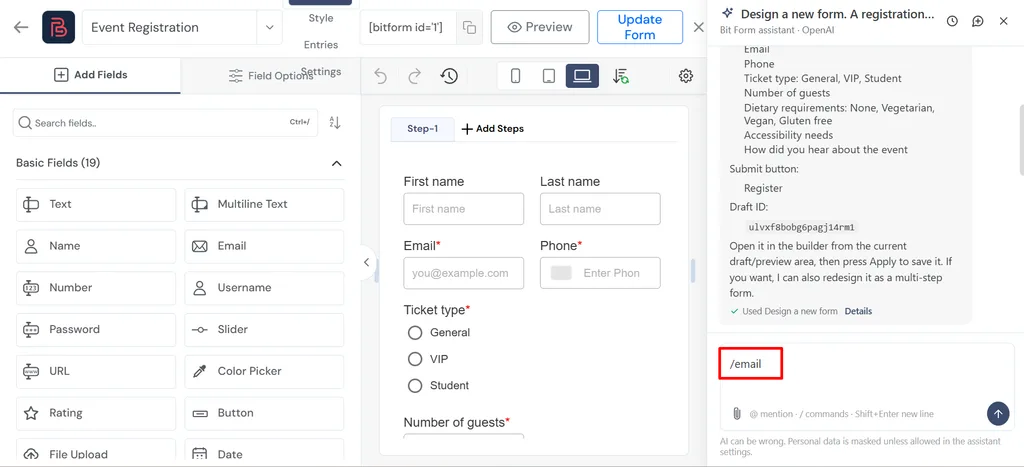
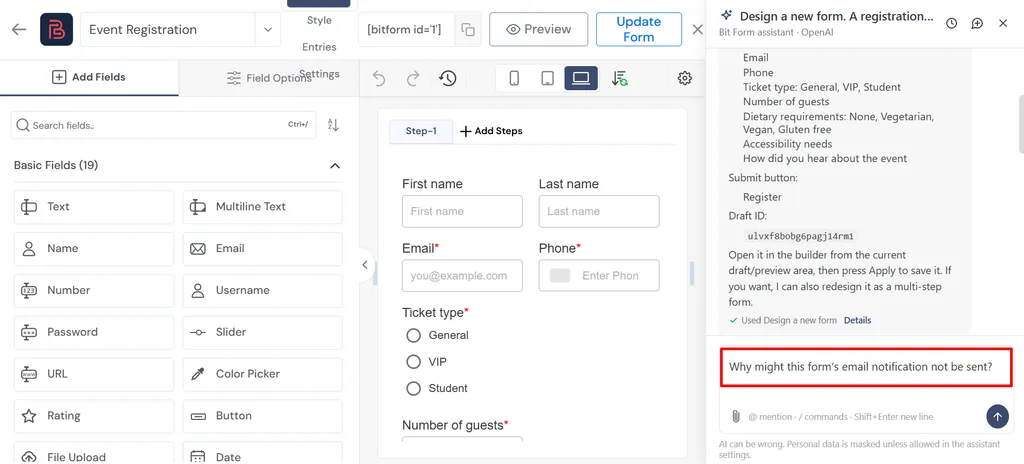
Click Ask AI, type /email, and select the suggested prompt:
“Why might this form’s email notification not be sent?”
Press Enter. This starts an investigation; it does not automatically fix delivery.
Step 3: Review What the Assistant Finds
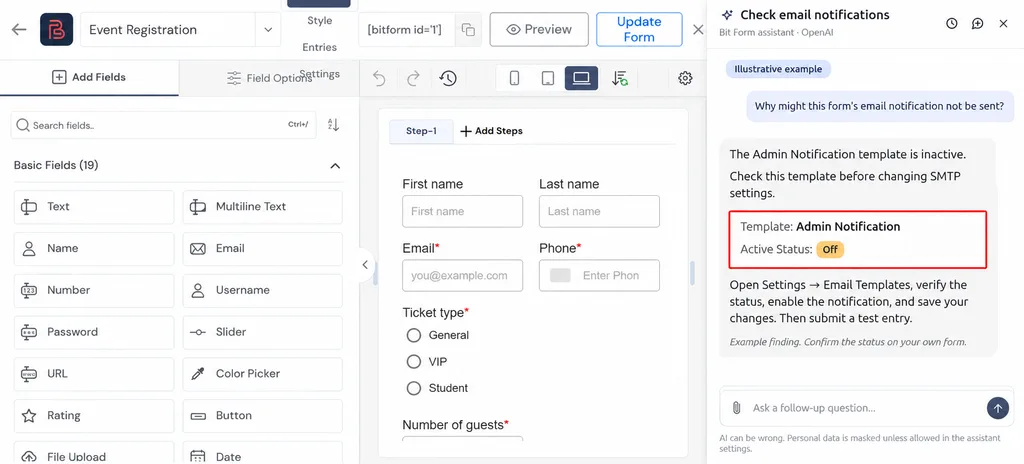
The assistant examines notifications, the workflows that send them, and the recent email log. Read its explanation and check which evidence supports the suggested cause.
For example, if it identifies an inactive admin notification, check that template before changing SMTP settings. Treat this as an example until you confirm the finding on your own form.
Step 4: Ask AI to Fix the Issue
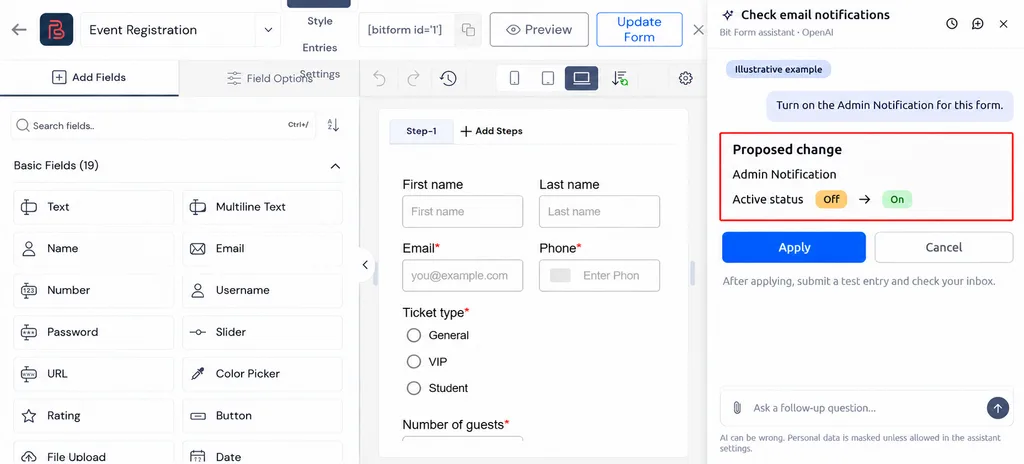
Once the assistant identifies the cause, give it a clear instruction to fix the supported setting. For example:
“Turn on the Admin Notification for this form.”
Make sure Read and write access is enabled. Review the proposed change, then click Apply to save it.
Submit a fresh test entry and check whether the notification arrives. If the issue involves SMTP credentials or your email provider, you may need to update those settings separately.
Step 5: Identify Which Part Needs Fixing
Use the findings to decide where to look next:
| Finding | Next check |
| The notification did not run | Check its active status and conditions. |
| A sending attempt returned an error | Read the error and investigate the relevant sender or connection setting. |
| Sending appeared successful, but the inbox is empty | Check spam, recipient details, and provider delivery records. |
A missing log record alone does not prove that a notification was never triggered. Check the available logging information alongside the form settings.
Fix Your WordPress Form Email Notification Settings
Make the change that matches the findings, then test again.
Check That the Notification Is Active
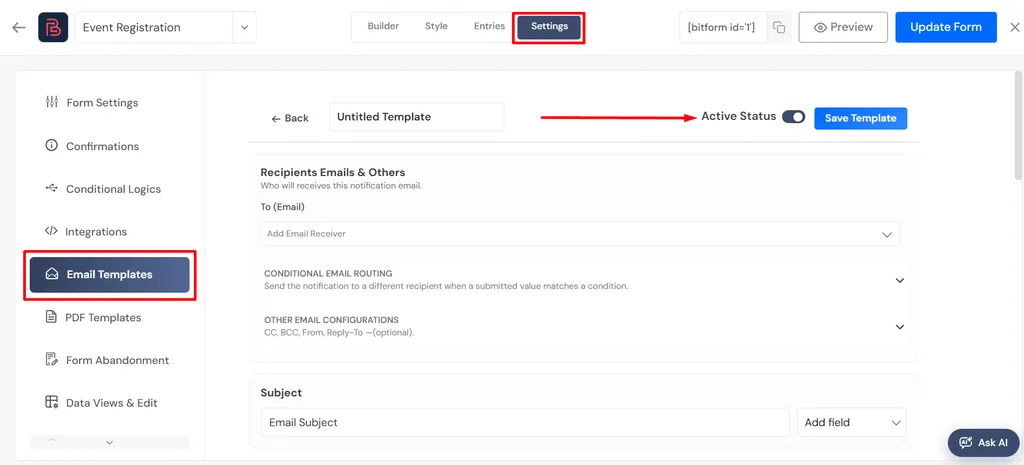
Open the form’s Settings → Email Templates and find the affected notification.
If its Active Status is off, turn it on and click Update Form. An inactive template will not be sent, even when the form submission succeeds.
Verify the Recipient and Sender Details
Open the template and check:
- To: The inbox that should receive the notification.
- From Mail: An address your sending provider authorizes you to use.
- Reply To: The address that should receive replies.
For an admin alert, use your authorized address as the sender and the visitor’s email field as Reply To. This lets you reply to the visitor without sending as their address.
Review Notification Conditions
An active template without a condition is sent after each successful submission. A template controlled by a central rule sends only when that rule matches, using the rule’s recipients. You do not need to add a separate conditional rule for an unconditional notification.
For the complete setup, you can follow our WordPress email notifications guide.
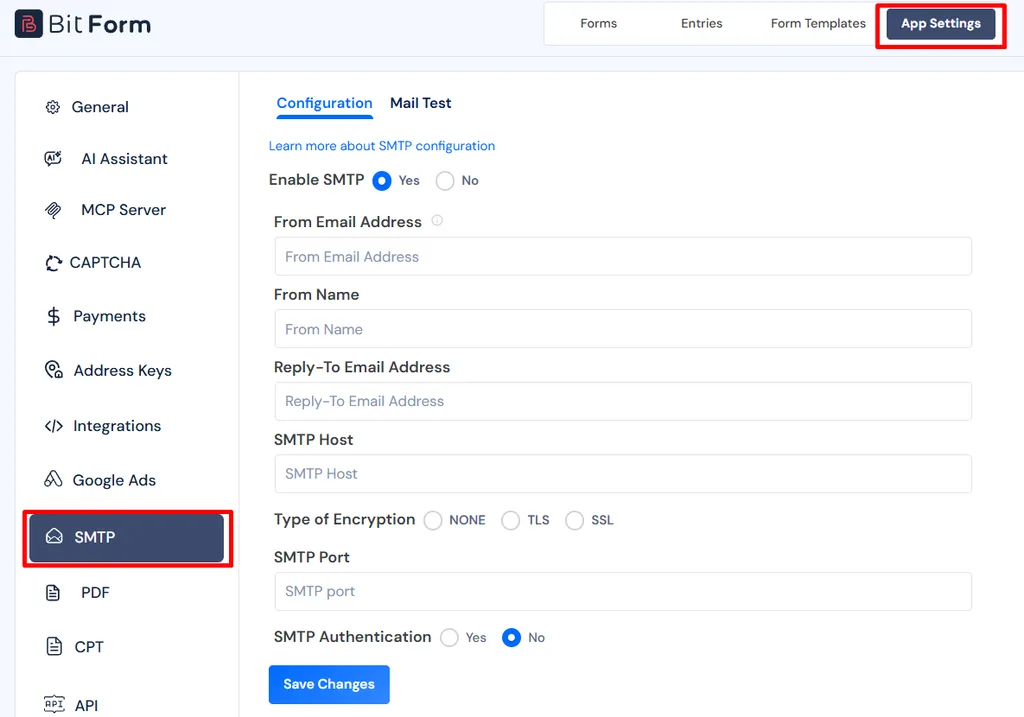
Check SMTP Settings When Your WordPress Form Still Cannot Send Email
If the notification settings look correct but sending fails, check the connection used to send mail.
WordPress forms can send mail through the server’s default method, which often lacks authentication. Email providers may filter or reject messages sent this way. Sending through an authenticated SMTP connection usually makes delivery more reliable, although it does not guarantee that every message reaches the inbox.
Open Bit Form’s SMTP Settings
Go to Bit Form → App Settings → SMTP. If you use Bit Form’s built-in SMTP connection, confirm that it is enabled.
Enter Your Provider’s Connection Details
Check these values against your provider’s current instructions:
| Setting | What to verify |
| Sender address | An address the provider permits you to send from. |
| SMTP host | The provider’s outgoing mail server. |
| Port and encryption | The combination specified by your provider. |
| Authentication | The required username and password or app password. |
Save your changes. Use the Bit Form SMTP setup guide for the interface walkthrough, and your provider’s documentation for current connection requirements.
Test the Connection
In the SMTP testing area, enter an inbox you can check, add a subject and message, and click Send Test.
If it fails, use the returned error to guide your next correction. If the test arrives but the form notification does not, return to the notification’s recipients and conditions.
Test Your WordPress Form Email Again and Confirm Delivery
After making the relevant correction:
- Save the changes. If AI prepared a builder preview, click Apply.
- Submit a fresh test entry. Use answers that match any notification conditions.
- Check the recent email log. Look for the new attempt and any errors.
- Check the inbox and spam folder. Confirm that the message actually arrived.
- Test each notification separately. An admin alert and a visitor confirmation can have different recipients and conditions.
A successful sending result does not guarantee inbox delivery. The final check is receiving the expected notification with the correct content and reply address.
Final Thoughts
A missing form email doesn’t always mean the form is broken. The cause could be an inactive notification, an unmatched condition, or a problem with your email connection.
Bit Form’s AI Assistant helps you investigate the available settings and email records. Use its findings to guide your fix, then submit a fresh test entry. Remember, a successful sending result is only part of the check. Confirm that the notification reaches the intended inbox.
Start by opening your affected form and trying “/email.” You’ll have a clearer starting point for finding out where the process is going wrong.
Frequently Asked Questions
Why is my WordPress form not sending emails?
Common causes include an inactive notification, an incorrect email address, unmatched notification conditions, or a problem with your SMTP connection. Check the notification settings and available email records to narrow down the cause.
Why does my contact form show success but send no email?
The success message confirms that the form submission was completed. It does not confirm email delivery. The notification may not have been triggered, the sending attempt may have failed, or the message may have been filtered into spam.
How can AI help troubleshoot WordPress form emails?
Bit Form’s AI Assistant can inspect notifications, conditional workflows, and available records of recent email runs. Open the affected form, click Ask AI, and use /email to start investigating. Review its findings before making changes.
Can Bit Form’s AI Assistant automatically fix email delivery?
The assistant can help identify likely causes and update supported notification settings when permitted. You review and save those changes. SMTP credentials, provider restrictions, and inbox filtering may still need separate attention.
Do I need SMTP for my WordPress form emails?
SMTP is not the only possible cause of missing form emails, but it is one of the most common fixes. Sending through an authenticated SMTP connection usually makes delivery more reliable than the server’s default method, though it does not guarantee that a message reaches the inbox.
Why do my WordPress form emails go to spam?
Messages can be filtered when the sending method lacks authentication or the sender address does not match what your provider allows. Check your SMTP setup, confirm the From address is authorized, and review your provider’s delivery records.


Related Blog
AI-Powered WordPress Forms: Create and Manage Forms With AI

5 Best WordPress Form Plugins for Agencies (Affordable Picks)