

 EN
EN  ES
ES  DE
DE How to Add Email OTP Verification in WordPress Form
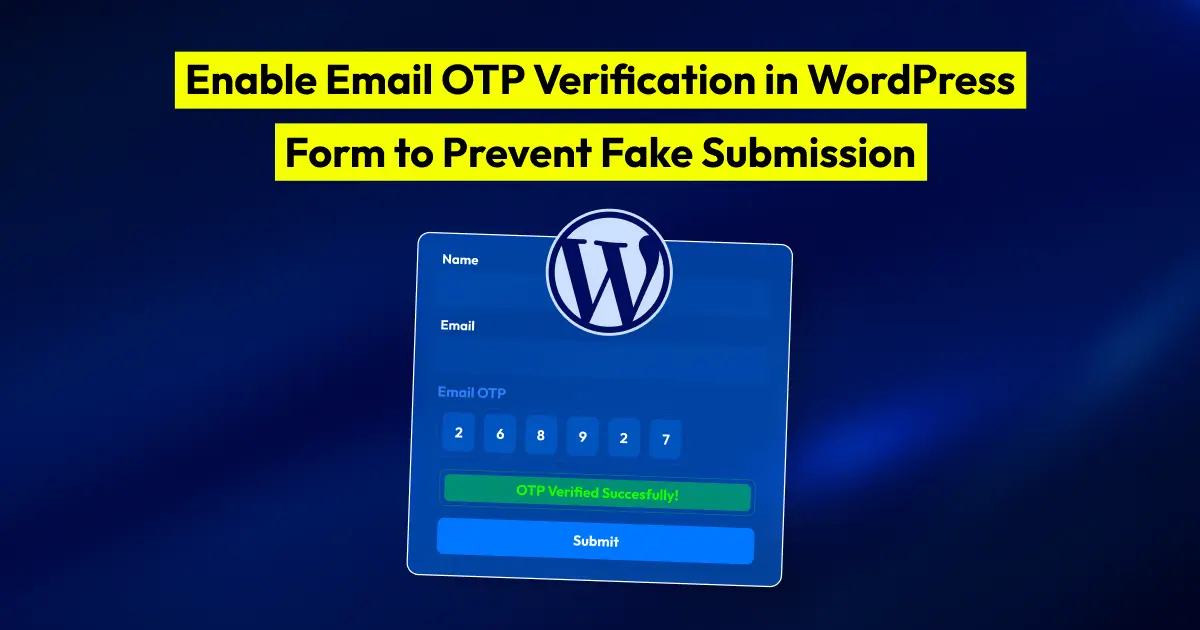
Fake form submissions waste time. They fill your database with invalid emails, pollute your CRM, and trigger email notifications that lead nowhere.
Email OTP verification adds a simple check before the form is submitted. The user enters their email address, receives a one-time code, and verifies that code inside the form. Only then can they complete the submission.
For WordPress forms, this is useful for contact forms, lead forms, signup forms, registration forms, quote forms, and any form where the email address matters.
TL;DR
To add email OTP verification in a WordPress form:
- Install and activate Bit Form Pro
- Make sure SMTP is working on your WordPress site
- Add an Email field to your form
- Drag the Email OTP field into the form
- Select the Email field as the OTP receiver
- Set the OTP code length and resend delay
- Edit the OTP email template
- Test the form before publishing it
If the OTP email does not send, check SMTP, spam folder, and the selected receiver email field.
What Is Email OTP Verification in a WordPress Form?
Email OTP verification is a form of security method where users must verify their email address with a one-time password before submitting a form.
The flow is simple. A user enters an email address. The form sends an OTP code to that email. The user enters the code in the form. After successful verification, the form allows submission.
This confirms that the user has access to the email address they entered.
It does not stop every spam attempt. Bots can still try to submit forms. But it does reduce fake email entries, random submissions, and low-quality leads from users who enter invalid or unreachable email addresses.
Note: You can also add reCAPTCHA to add bot protection before users interact with the form.
Why Add Email OTP Verification to WordPress Forms?
Email OTP verification is useful when you need a real email address before accepting a form submission.
It reduces fake entries, improves lead quality, and keeps your email list or CRM cleaner. The user must verify the code sent to their inbox, so random or invalid email addresses cannot pass the form easily.
Use it for forms where email accuracy matters, such as:
- User registration forms
- Lead generation forms
- Quote request forms
- Support forms
- Download access forms
- Event registration forms
- Forms connected to CRM or email automation
Email OTP does not replace CAPTCHA or other spam protection methods. But it adds a strong email verification layer before the form is submitted.
Before You Add Email OTP Verification
Before adding email OTP verification to your WordPress form, check these first:
- Bit Form Pro is installed and activated
- Your form already has an Email field
- SMTP is working on your WordPress site
- Your domain has proper email authentication records
- You have tested that WordPress emails are reaching the inbox
SMTP matters because OTP verification depends on email delivery. If your WordPress site cannot send emails properly, users may never receive the OTP code.
Many WordPress sites use the default PHP mail function, which can cause delivery issues. Bit SMTP lets you connect WordPress with SMTP services such as Gmail, Outlook, SendGrid, Brevo, Mailgun, Amazon SES, and other SMTP providers.
For better email delivery, also configure domain authentication records such as SPF, DKIM, and DMARC. Google recommends using SPF with DKIM and DMARC for better sender authentication, and DMARC tells receiving servers what to do when messages fail SPF or DKIM checks.
How to Add Email OTP Verification in WordPress Form Using Bit Form
Now let’s set it up using Bit Form. This process uses the Email OTP field in Bit Form Pro.
Step 01: Install Bit Form Pro and Create the Form
First, install and activate Bit Form on your WordPress site. Since Email OTP Verification is a Bit Form Pro feature, make sure Bit Form Pro is also installed and activated.

After activation, go to Bit Form menu from your WordPress dashboard. Open an existing form or create a new one. Your form should include an Email field because the OTP code will be sent to the email address entered by the user.
In the form builder, search for Email OTP from the field panel. Drag the Email OTP field into your form.
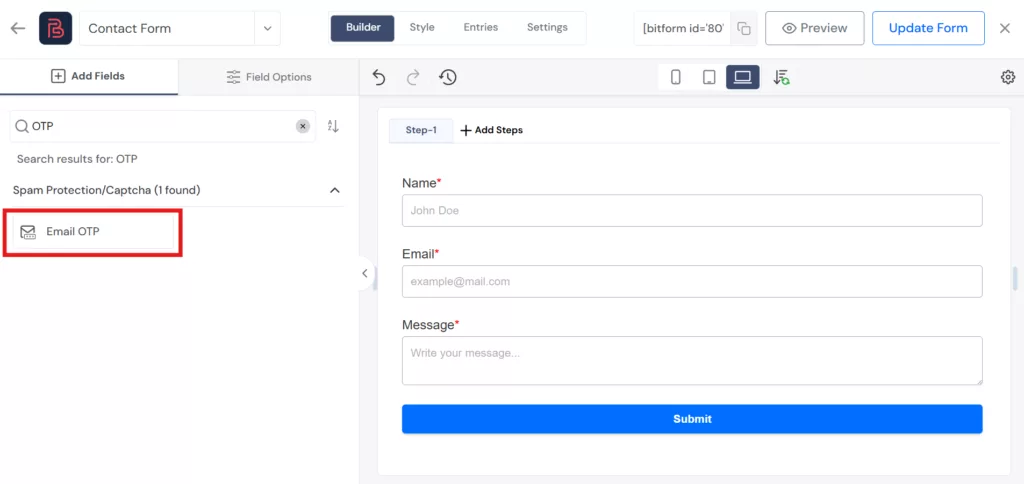
Place it after the Email field. This keeps the flow clear for users. They enter their email first, then verify it with the OTP code.
Step 02: Edit the Email OTP Field
Click on the Email OTP field. The field settings will open on the left side. From here, you can edit: Label, Subtitle, Icon, Basic field settings.
You can keep the label as Email OTP or write something clearer for users.
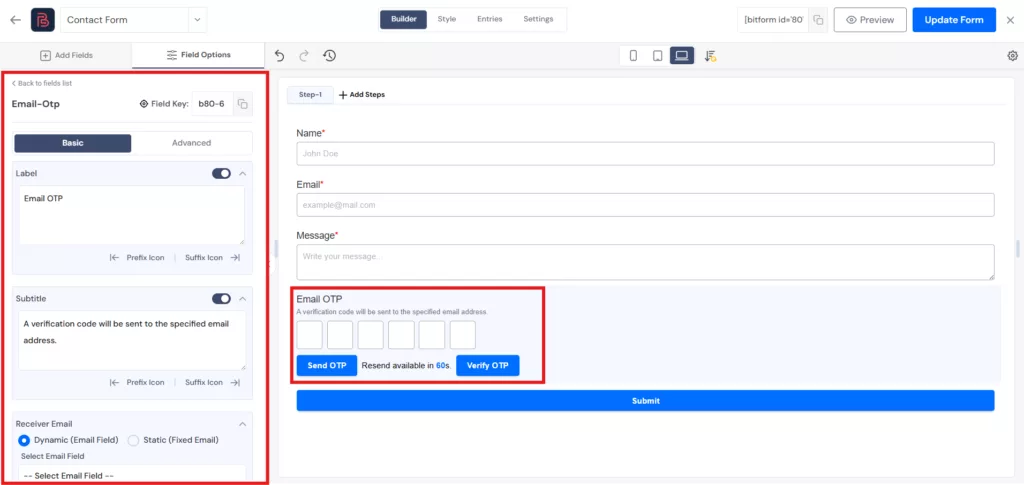
Example label: Verify Your Email
Example subtitle: A verification code will be sent to your email address. Keep the text short. Users should understand what to do without reading a long explanation.
Step 03: Select the Receiver Email
Open the Receiver Email section. Select Dynamic (Email Field). Then choose the Email field from your form.
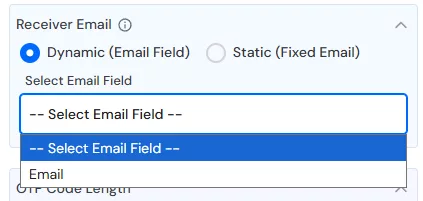
This tells Bit Form where to send the OTP code. The code will go to the email address entered by the user in that selected Email field.
This step is important. If you choose the wrong receiver field, the OTP email may not go to the user’s address.
Step 04: Set the OTP Code Length and Resend Delay
Next, set the OTP code length. Open the OTP Code Length setting and enter your preferred number of digits.
Allowed range: 4 to 8 digits
A 6-digit OTP is a common choice. It is short enough to type and strong enough for normal form verification.
Then open OTP Resend Delay (Seconds).
This controls how long users must wait before requesting a new OTP. Example: 60 seconds
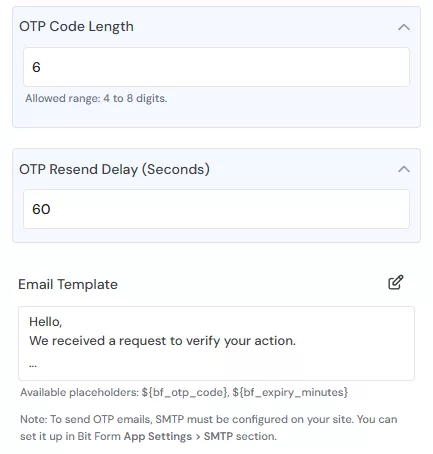
A resend delay protects your form from repeated OTP requests. It also reduces unnecessary email sending.
Step 05: Edit the OTP Email Template
Go to the Email Template section. Click the Edit icon. The OTP email template editor will open. From here, you can edit the subject and message users receive. You can use placeholders such as:
{bf_otp_code}for the OTP code{bf_expiry_minutes}for the OTP expiry time
You can also use smart tags to add dynamic form data inside the OTP email.
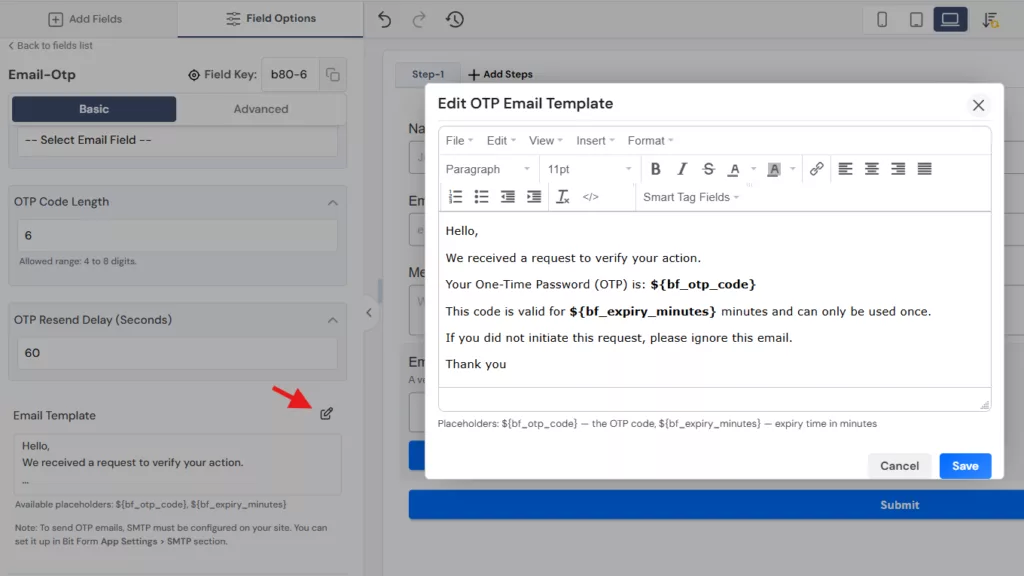
Keep the OTP email simple. The user only needs the code and a short instruction. Example OTP email copy:
Subject: Your verification code
Message:
Your email verification code is {bf_otp_code}.
This code will expire in {bf_expiry_minutes} minutes.
After editing the template, click Save.
Bit Form will now use this template when sending OTP emails.
Step 06: Test the OTP Verification
Preview the form. Enter the form details with a valid email address. Click the OTP send button. Now check the email inbox. The user should receive an email with the OTP code.
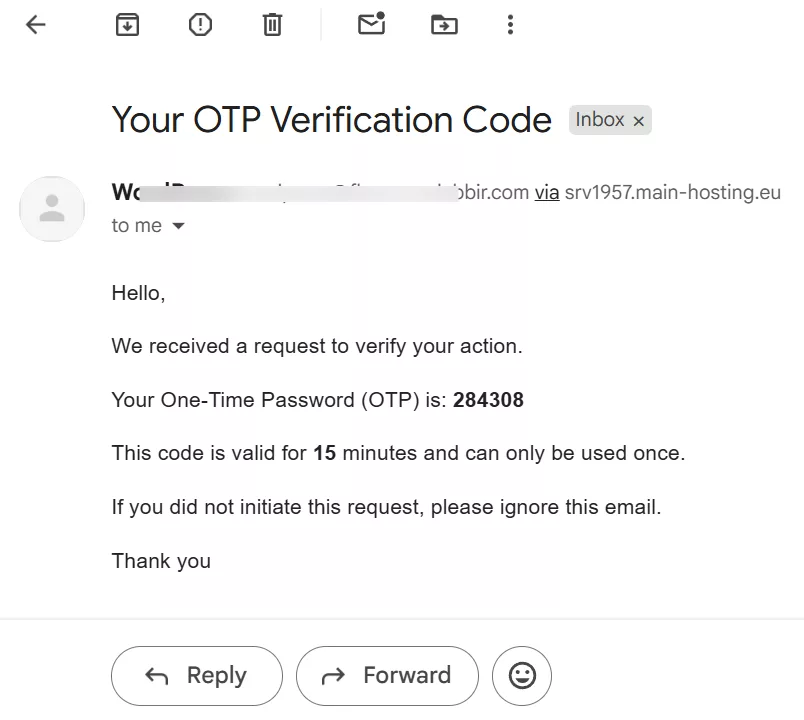
Copy the code and enter it into the OTP field inside the form. After successful verification, the form will show a success message like:
OTP verified successfully!
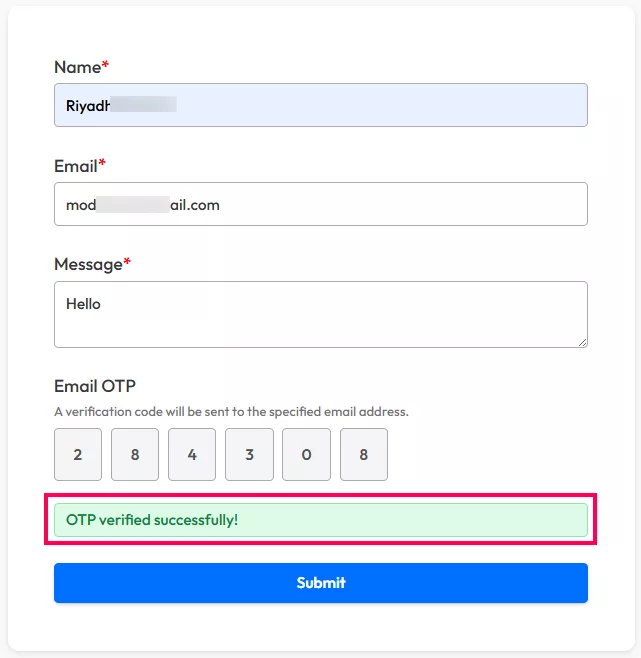
After the OTP is verified, the user can submit the form. Test this full process before adding the form to a live page.
What to Check If the OTP Email Does Not Arrive
If the OTP email does not reach the inbox, do not change the form first. Check your email delivery setup.
Start with these:
- SMTP configuration
- Spam or junk folder
- SPF record
- DKIM record
- DMARC record
- OTP email template
- Receiver Email field
- Email sender address
- Hosting email restrictions
For WordPress sites, SMTP is often the first thing to fix. A working SMTP setup gives your site a more reliable way to send transactional emails, including OTP codes.
Best Practices for WordPress Form Email OTP Verification
A good OTP setup should feel simple for the user. Follow these best practices:
- Place the OTP field right after the Email field
- Use a clear field label
- Keep the OTP email short
- Use a 4 to 8-digit OTP based on your form needs
- Add a resend delay
- Test with Gmail, Outlook, and other common inboxes
- Configure SMTP before publishing the form
- Add SPF, DKIM, and DMARC records
- Use OTP only on forms where email verification matters
For high-risk forms, combine email OTP with other spam protection methods. OTP confirms email access, but it should not be treated as the only security layer.
Email OTP Verification vs Double Opt-In
Email OTP verification and double opt-in both verify email addresses, but they work differently. Email OTP verification happens during form submission. The user enters a code before submitting the form.
Double opt-in usually happens after submission. The user receives a confirmation email and clicks a link to confirm their email address.
Use email OTP when you want to block the form submission until the email is verified. Use double opt-in when you want to confirm the email before running later actions, such as newsletter subscription or follow-up workflows.
Bit Form also supports double opt-in workflows, where actions like webhooks, email notifications, and integrations can run after the responder confirms their opt-in.
Final Thoughts
Email OTP verification is a practical way to prevent fake WordPress form submissions when email quality matters.
With Bit Form Pro, you can add an Email OTP field, connect it to your form’s Email field, control the OTP length, set a resend delay, and customize the OTP email template.
Before publishing the form, test the full flow. Make sure SMTP is working, the OTP email reaches the inbox, and the form can be submitted only after successful verification.
FAQs
What is email OTP verification in a WordPress form?
Email OTP verification sends a one-time code to the user’s email address. The user must enter that code in the form before submitting it.
Can I add email OTP verification in Bit Form?
Yes. Bit Form V3 supports Email OTP Verification through the Email OTP field. This feature is available in Bit Form Pro.
Why is SMTP required for email OTP verification?
SMTP improves the way WordPress sends emails. Since OTP verification depends on email delivery, a working SMTP setup is important.
What OTP code length should I use?
A 6-digit OTP is a good choice for most WordPress forms. Bit Form supports OTP code length from 4 to 8 digits.
What should I do if OTP emails go to spam?
Set up SMTP and configure SPF, DKIM, and DMARC for your domain. Also keep the OTP email short and use a trusted sender address.
Where should I place the Email OTP field?
Place the Email OTP field after the Email field. This gives users a natural flow: enter email, verify email, then submit the form.

Related Blog

How to Add a “How Did You Hear About Us” Survey in WordPress

How to Prevent Spam Form Submissions in WordPress