Bit Form V3 Released Now

La oferta termina en:
00
días día
00
horas hora
00
Mins Min
00
Secs Sec
días día
horas hora
Mins Min
Secs Sec
For years, Contact Form 7 has been the starting point for many WordPress users. It is lightweight, familiar, and dependable for simple contact forms.
At WordCamp Asia in India in 2026, Contact Form 7 creator Takayuki Miyoshi confirmed that the plugin would no longer receive new feature updates after version 6.2. For WordPress users, that makes this a practical time to move to a form builder that is actively growing and easier to work with.
Bit Form gives you a faster way to rebuild those forms because you can start with prebuilt templates or create the same layout from scratch with a visual builder. Bit Form’s template library covers common use cases, and its builder is made for quick form building.
Before rebuilding, open your existing Contact Form 7 form and check what it includes.
Look at the fields first. Note down the field names, required fields, placeholders, file upload settings, and any dropdown or checkbox options. Then check what happens after submission. Does it send a confirmation email to the user? Does it show a success message or redirect to another page?
Navigate to your WordPress Dashboard> Plugins> Add New Plugin and search for Bit Form. Then install and activate Bit Form from your WordPress dashboard.
Or, download the Bit Form file from the website, upload it through Plugins > Add New > Upload Plugin, then install and activate it.

Once it is active, navigate to the plugin menu. If you are coming from Contact Form 7, this will feel different instantly.
The fastest way to rebuild many Contact Form 7 forms is to start with a template. If you click on the "Crear formulario" button, you will see all the Bit Form templates.
This template library includes many common form types like contact forms, booking forms, feedback forms, registration forms, payment forms, and lead forms.
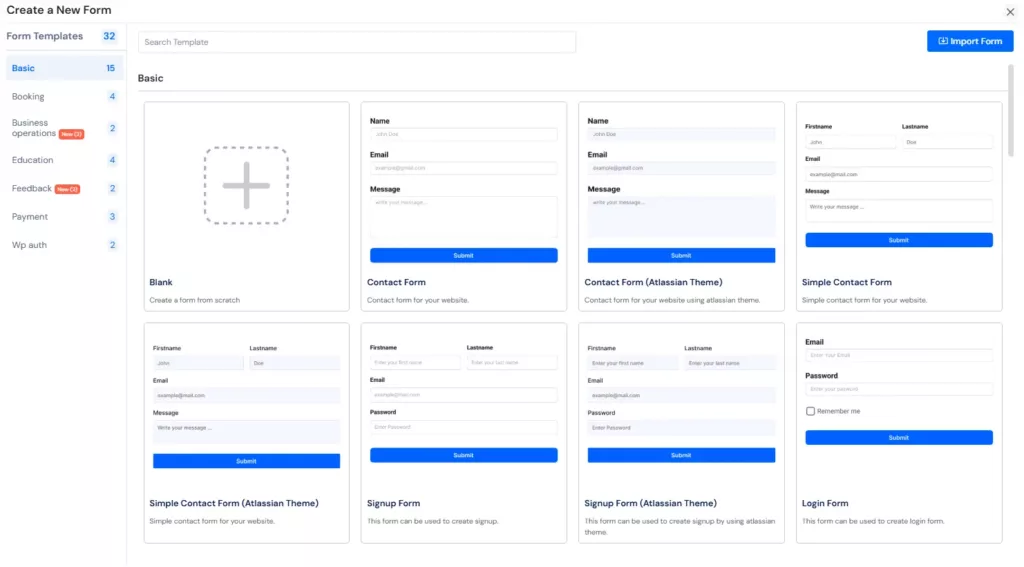
If your old form is close to one of those, use a template and edit it instead of building everything from zero. Just choose the template and hit the Use Template botón.

If your form is more custom, start with a blank form and build it yourself. That is still pretty quick because you can drag fields into the builder, edit labels, and adjust the layout visually.
Now recreate the fields from your Contact Form 7 form.
Start with the basic ones first: name, email, phone, subject, message, dropdowns, radio buttons, checkboxes, and file upload.

Once those are done, add anything extra to your form, such as a date, time, hidden fields, password fields, rating fields, dividers, or repeaters.
This part is where Bit Form usually feels easier for users switching from Contact Form 7. The free version includes a visual builder, form preview, multi-column layouts, conditional logic, calculations, multi-step forms, prebuilt templates, and a wider set of fields.
Those differences make form rebuilding much faster, especially when your old form is no longer just a simple contact form. For example, in this job application form, I have used multi-steps and repeaters (Pro Field) to make the form more organized and effective.

A simple way to do this is to keep your old form open in one tab and Bit Form open in another. Then rebuild it section by section.
Do not stop at rebuilding the same fields. Also, review how the form should behave.
If your Contact Form 7 form only collects basic information, you may not need to change much. But if you want more advanced behavior, Bit Form lets you improve the form while rebuilding it. You can add conditional logic, hidden fields, calculations, or multi-step flow to make the form more dynamic and easier to manage.
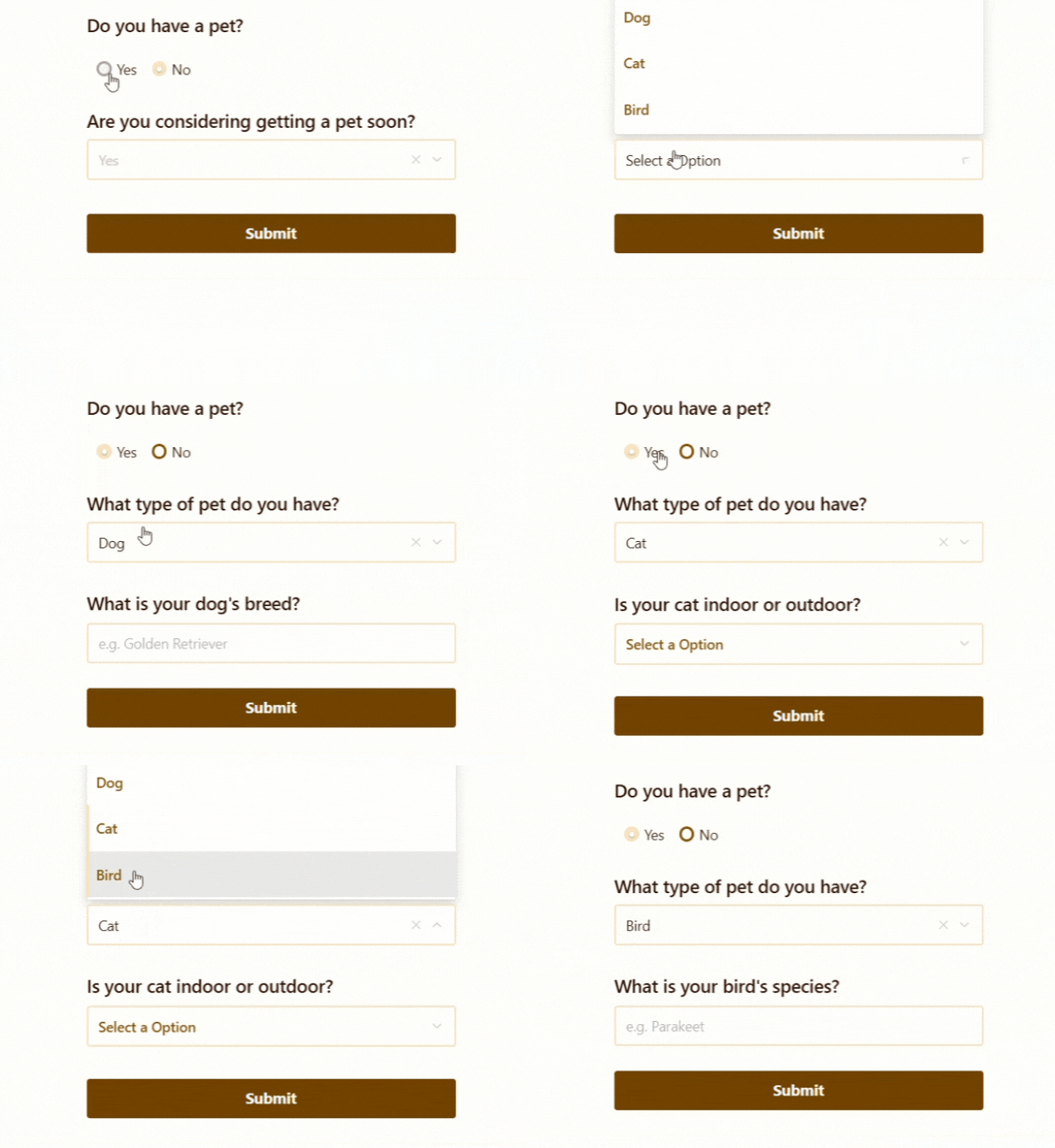
This is a good point to decide whether you want to simply recreate the old form or build a better version of it in Bit Form.
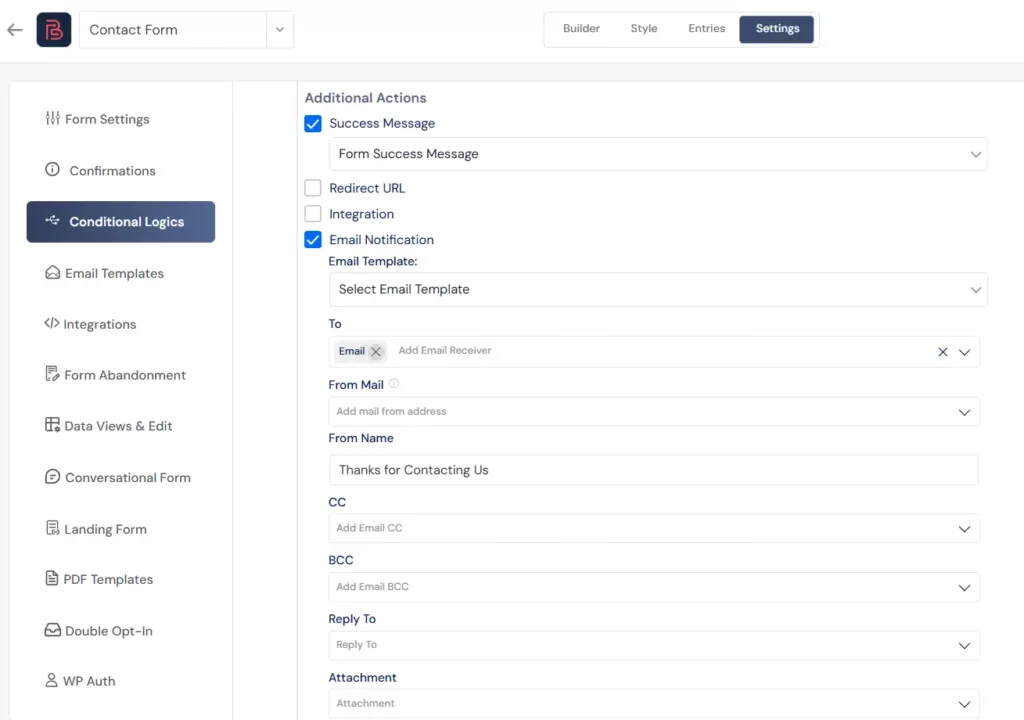
Once the form structure is ready, check what happens after someone clicks submit.
Set the admin notificación por correo electrónico first so entries go to the correct email address. Then set the user-end message or redirect. For some forms, a simple success message is enough. For others, it makes more sense to send users to a thank-you page.
Once the new form is tested in the builder, go to the pages or posts where your Contact Form 7 form appears.
Replace the old shortcode or embed with the new Bit Form version. If you have several active forms, do this one at a time. Start with the most important one first, usually your contact page, lead form, or quote request form.
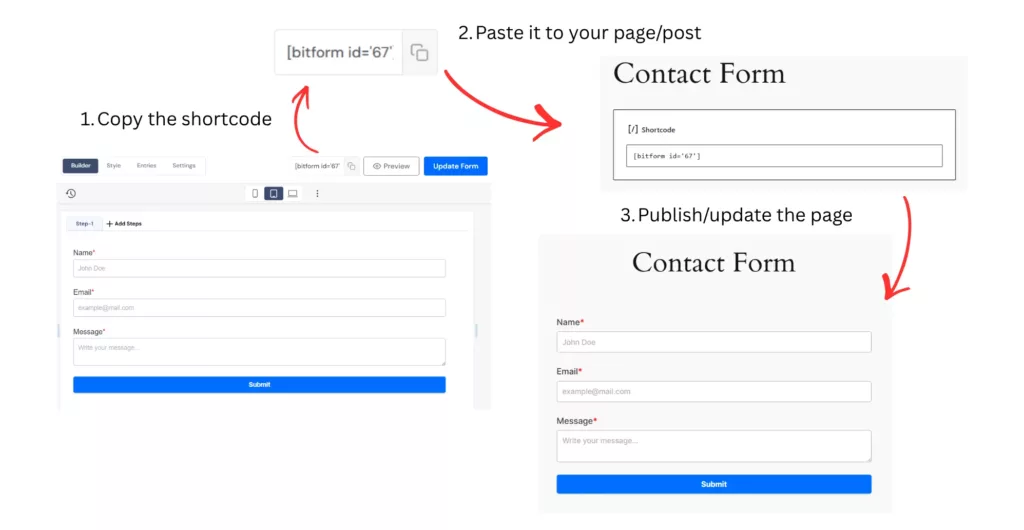
Before you remove the old setup, submit the form a few times yourself.
Test it as an admin and also from the front end like a normal visitor. Check that required fields work, emails arrive, files upload properly, confirmation messages appear, and any conditional logic behaves the way you expect. If the form has multiple steps, complete the full journey.
One common mistake is copying only the fields and forgetting the settings behind the form. Always check notifications, success messages, spam protection, and integrations.
Another mistake is trying to rebuild every form on the site in one go. It is better to migrate one form, test it properly, then move to the next one.
The last mistake is rebuilding old clutter exactly as it was. Migration is a good chance to clean things up. Remove fields you no longer need. Make labels clearer. Simplify the layout. In many cases, the better version of the form is not an exact copy. It is a cleaner rebuild.
Moving from Contact Form 7 to Bit Form is usually a straightforward rebuild. Start by reviewing your current form, rebuild it with a template or the drag-and-drop builder, review the settings, and test it before replacing the old version.
For simple forms, this can be done pretty quickly. For more advanced forms, Bit Form gives you a cleaner way to rebuild them. If your goal is to make form building easier while keeping full control over the result, this is a practical upgrade path.
Bit Form gives you a visual builder, templates, flexible fields, and easier layout control. It can make form building and editing much faster.
Review your existing Contact Form 7 fields and settings, then rebuild the form in Bit Form using a template or blank form. After that, test everything and replace the shortcode.
Yes. If your existing form matches a common use case, starting with a template can save time. You can then edit the layout, fields, and settings to match your original form.
Test required fields, file uploads, email delivery, confirmation messages, redirects, conditional logic, and the full flow of any multi-step form.
Yes, Bit Form can support more advanced form setups with features like conditional logic, multi-step forms, repeaters, and visual layouts. This makes it easier to manage complex forms.




 ES
ES  EN
EN  DE
DE