


 DE
DE  EN
EN  ES
ES  PT
PT  IT
IT  JA
JA  ID
ID How to Generate PDFs From Form Submissions in WordPress
Have you got this question: Does anyone know how to automatically generate a PDF from a form submission and email it to a particular user? Well, we get this often.
Usually, what happens is that if you have a WordPress site, whenever someone fills out your registration form, booking form, or any sort of contact form, all the information is stored on your server. WordPress does not offer any default option that will automatically turn your form submissions into a PDF document.
So in that case, we need to retype all the submissions into a Word document, which is obviously quite time-consuming and unnecessary. Well, hold on, there must be a better way to solve this problem.
Today we’ll see how to generate PDFs from form submissions without copy-pasting data manually. To do this, we’ll need a reliable and user-friendly form plugin like Bit Form. It comes with a built-in PDF attachment feature; you won’t need any add-on. In this guide, I’ll show you how to turn each entry into a formatted PDF and email it to both admins and users.
Lange Rede, kurzer Sinn
To generate a PDF from a form submission in WordPress, you need a form plugin with a PDF attachment feature, so for this guide I’ve used Bit Form.
- Bit Form’s PDF Generation feature turns any form entry into a PDF automatically. No separate PDF add-on required.
- The setup has five moving parts: build the form, configure global PDF settings, create PDF templates, and email templates.
- Build two versions of the email and two versions of the PDF: one for the person filling out the form, one for the admin.
- Test with a real submission before launch. Open both PDFs yourself and confirm the right one landed in the right inbox.
Why Auto Generating PDFs From Form Submissions is Essential for Businesses?
It is clear that web forms are great at collecting user data, but it is not popular for presenting it the way any administration would like it to be- that is, in document form.
Once any customer submits a booking, an order, or an application, that data usually stays in the database. Well, it needs to leave the database and be displayed in a way a person can read, print, sign, or file away. I know you’re thinking of manually copy-pasting them into a doc.
But just imagine receiving 50 registration forms in a day. If someone has to open each submission, copy the information into a document, format it, save it as a PDF, and email it to the right person, it becomes irritating.
Similarly, there are a couple of more reasonable drawbacks:
1️⃣ First of all, it is repetitive and kills time and productivity. Just imagine copy-pasting data from the form entries dashboard into a document. Then formatting it, converting it to PDF, and sending it to admins and customers. Then repeating the same process every day for any new submission.
2️⃣ Another common reason why PDFs should be automatically generated from form submissions is to avoid mistakes while retyping or copy-pasting the data. Human error is inevitable; mistakes can happen while copy-pasting. Admins might add the wrong applicant information in the wrong row/column. Might send the wrong email to the wrong user. Like this, there are many possibilities.
3️⃣ It creates inconsistent documents. If someone creates each PDF manually, the formatting can change from one document to another. One might have a different heading; another might use different spacing and font.
A predefined PDF template keeps the structure consistent. The submitted information changes, but the document itself follows the same format every time
4️⃣ More submissions mean more repetitive work. This is where the manual process starts becoming difficult to manage.
You might be fine creating five PDFs manually. But when submissions increase, it becomes frustrating.
That’s where automatic PDF generation comes in and solves all these issues at once. Instead of creating each document yourself, you set up the template and workflow once. Once the document is created, it can be attached to an email and sent to the appropriate recipient without someone creating it manually each time.
How to Generate PDFs from Form Submissions in WordPress
What You Need Before You Start
Before setting up PDF generation, make sure you have:
- A WordPress form plugin with PDF support like Bit Form, either built in or through an add-on.
- PHP 7.4 or higher on your hosting.
- SMTP configured if you want to send PDFs by email.
- A completed form with the fields you want to include in the PDF.
📌Anmerkung: PDF Generation and PDF attachments are Pro features in Bit Form.
Step 01: Build the Form That Will Collect the Data
Start by creating the form that will collect the information. If you’re new to Bit Form, you can either start with a blank form or use one of its pre-built form templates, as I said. It provides templates for common uses such as contact forms, registration forms, booking forms, and payment forms.
Here, we’ll turn event registration form data into a PDF. So, for that, you can add fields such as:
- Vorname
- Nachname
- Rufnummer
- Unternehmen
- Ticket-Typ
- Meal Preferences
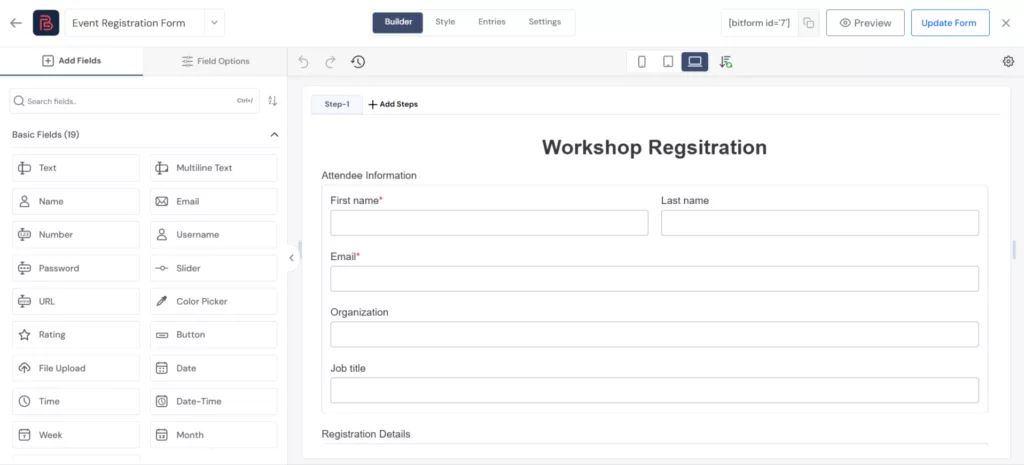
Make the fields required only when you genuinely need the information. This matters because the answers collected here become the source data for your PDF. Bit Form uses field keys to identify form data across emails, PDFs, integrations, and other actions.
Two habits that save you rework later:
- Label fields the way you want them to read in a document. “Budget Range” reads better in a PDF than “field_3.” Bit Form uses these labels as smart tags when you build your email and PDF templates, so clean labeling now means less cleanup later.
- Only ask for what you’ll actually use. Every extra field is something a user has to fill in and something you have to map later. Keep it to what the PDF and your team genuinely need.
💡Tip: Avoid these form mistakes in WordPress if you want maximum submissions.
Step 02: Turn On PDF Generation in Bit Form’s Global Settings
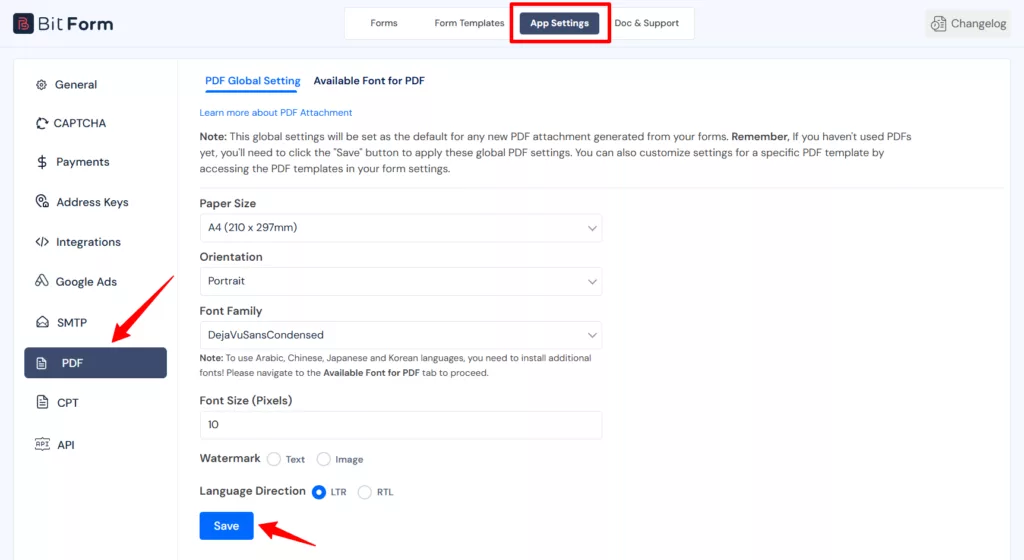
Once you’ve created your form, open your form’s App Settings and configure the PDF module for that form. These are the default formatting that your PDFs will follow, so set them first.
- Paper size: A4 or Letter covers most use cases
- Orientation: portrait for most documents, landscape for wide tables
- Font family and size: pick something readable, not decorative
- Watermark: a logo or text overlay, useful if you want every PDF branded even before you design a template
- Language direction: LTR for English and most Western languages, RTL for Arabic or Hebrew
The setup you just made will be applied to every PDF template you create afterward. You can still override any of these per template later if one form needs different formatting than the rest.
Step 03: Build the PDF Templates (Customer Copy and Admin Copy)
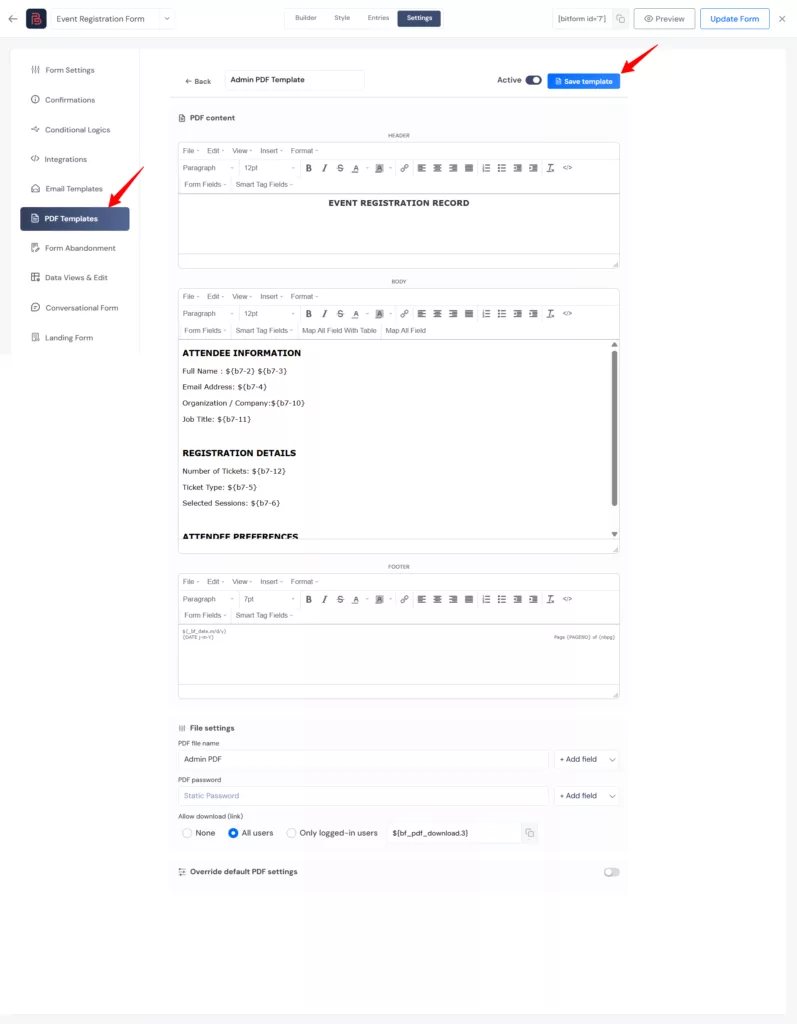
Now it’s time to create PDF templates that will be the format of your PDF form submission. For that, move to your form’s Settings → PDF Templates → Add New Template.
Now design the PDF body. You get two ways to build the PDF body: the default rich text editor, or a custom HTML/CSS template if you want full control over layout.
Inside the template, you insert your form’s actual field values using smart tags, so the PDF isn’t a static document but one that fills in dynamically with each submitter’s data.
Here’s the PDF template for users:
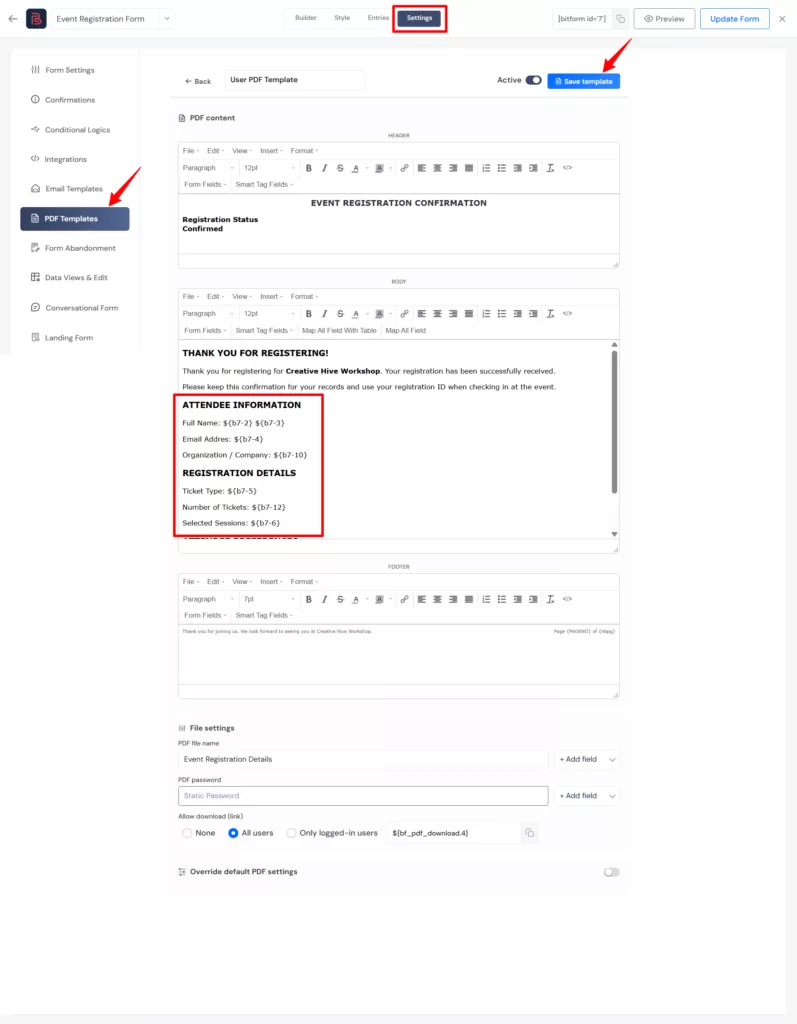
If you need the PDF to span multiple pages, a simple tag splits the content. From here, you can also set a custom PDF file name (static or built dynamically from form data), add a password to restrict access to the file, and decide whether to enable a public download link for the generated PDF.
Save the template once it’s set. Repeat for the admin if you’re sending different content to the admin and the user.
Step 04: Create Email Templates for the Customer and the Admin
The PDF gets delivered by email, so you need an email template before you can attach anything to it. And since we’re generating two PDFs, we’ll need two email templates as well.
Go to your form’s Settings → Email Templates → Add New Template.
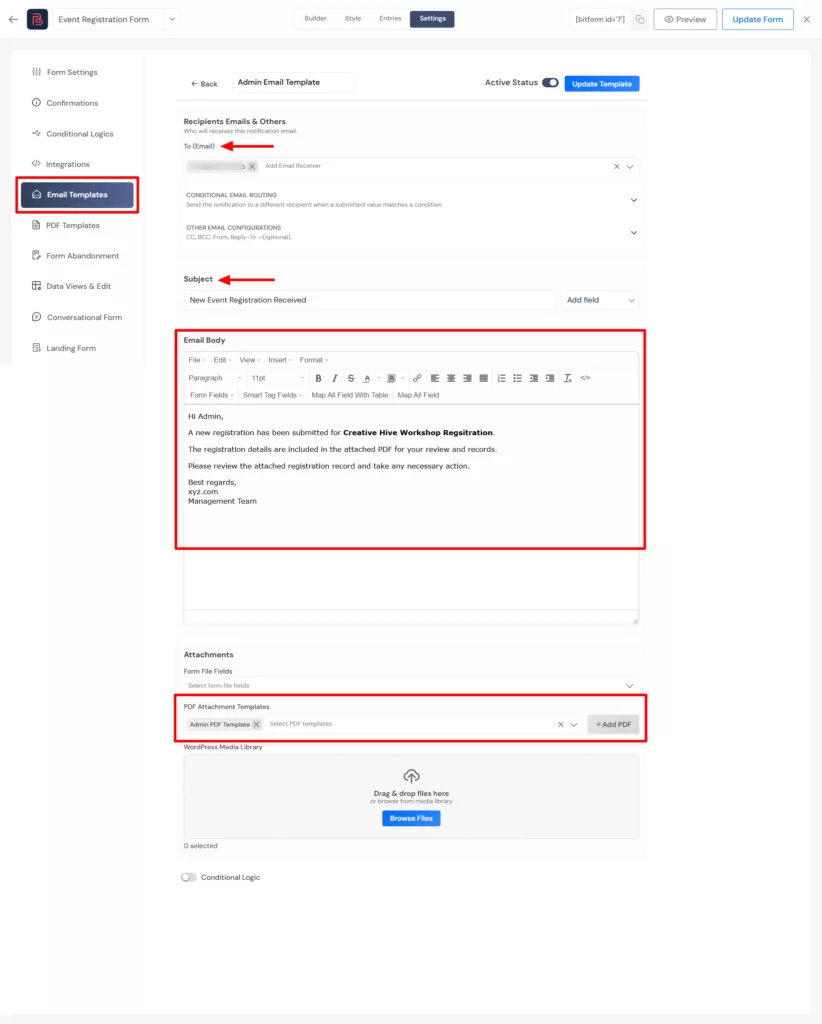
One is for the person who submitted the form. The other is for your admin or internal team. Bit Form’s Email Templates feature allows you to map all fields into the email message and customize it.
First, select the email of your admin→ add subject→ write email body →scroll down select the PDF you created for admin from the dropdown “PDF Attachment Templates”.
Admin email template:
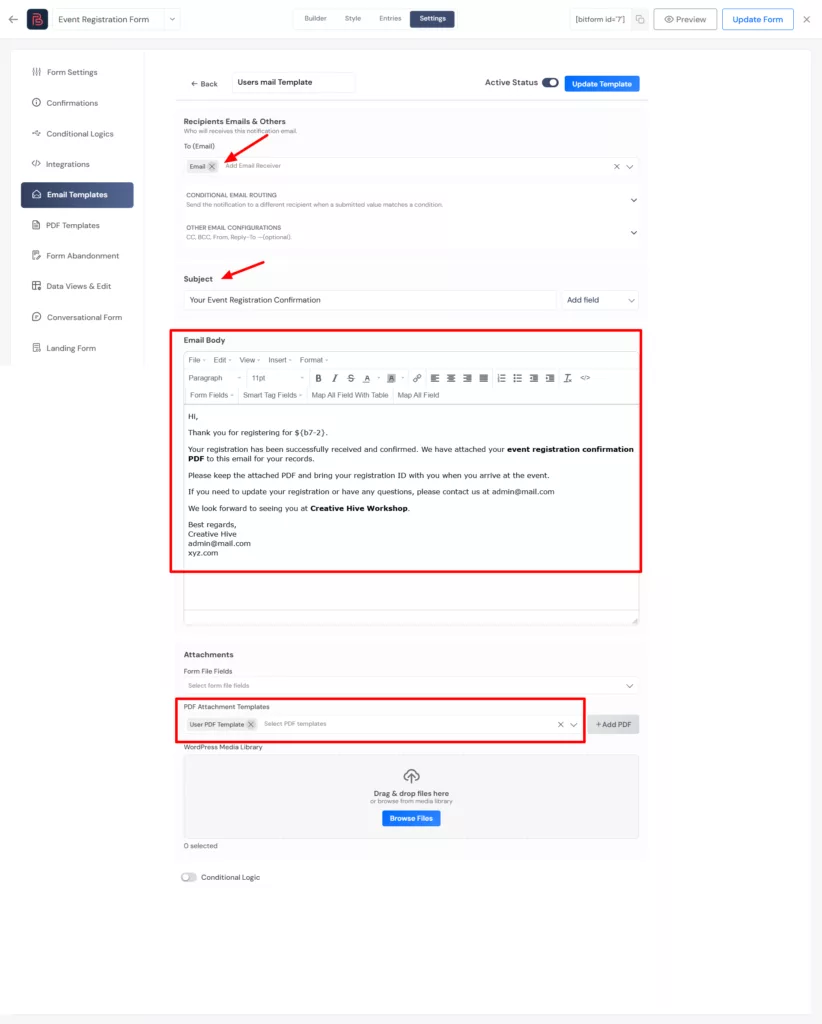
User email template:
Keep it simple. For example, the email could say that the registration was received and the attached PDF contains their registration details.
You can simply map the fields, or you can format and display the data as a table or plain text. Lastly, make sure you select the submitters’ PDF template you created earlier. Then save the configuration.
Test the complete workflow
Now comes the very important part of your whole setup. Testing. Test the workflow and check these things:
- Did the customer email arrive, with the customer PDF attached, not the admin one?
- Did the admin email land in the correct inbox based on the condition you set?
- Open both PDFs. Are the smart tags showing real data?
- If you set a password or a dynamic file name, does it look right?
It takes only a few minutes, and it’s the difference between a smooth launch and a client getting the wrong document. Once everything checks out, publish the form and let it run.
Common Problems with PDF Form Submissions and How to Fix Them
The PDF email never arrives
This is almost always an SMTP problem, not a PDF problem. Test your SMTP connection under App Settings first before assuming the PDF Attachment setup is broken.
Fields show up blank in the PDF
Double-check that the smart tags inside your PDF template match the actual field IDs on your form. A renamed or duplicated field will break the mapping silently.
Special characters or accents render oddly
This usually comes down to the font family selected in your PDF settings. Not every font supports every character set, so switching fonts often resolves it.
The download link doesn’t work for a user
Check the download permission setting on that template. If it’s restricted to logged-in users, anyone browsing anonymously won’t be able to open the link.
Die Quintessenz
Well, I agree most WordPress sites do not need to generate a PDF on form submission right away. It becomes necessary when you receive tons of submissions, and it starts to pile up. And when a user asks about the confirmation receipt. At that time, manual data entry becomes totally pointless as it will consume half of your day. Exactly, that’s when form plugins like Bit Form automate the process for you by generating a PDF on form submission automatically.
Once the template, trigger, and delivery method are set up, the plugin does the repetitive part for you on every future submission, without any manual effort. So if you’re building a form in WordPress, you can try Bit Form’s PDF Attachment feature. It is easy to create PDFs from forms in WordPress; just follow the steps covered here, and you’re good to go. Enjoy converting form submissions to PDF!
FAQs
Does WordPress generate PDFs from form submissions by default?
No. WordPress by default only stores all the form entries in its database. For PDF generation, you’ll need a form plugin with a dedicated PDF feature, or a separate add-on, to turn a submission into a formatted PDF.
Is the PDF feature free in Bit Form?
No, PDF Attachment is available in the Bit Form Pro version. The free version covers unlimited forms and submissions, conditional logic, form templates, spam protection, and more, but PDF generation, payment fields, and a few other advanced features require a paid plan.
Can I send a different PDF to the admin and to the person who submitted the form?
Yes. For that, simply build two separate PDF templates and two separate email templates just the way I did above. Then use two conditional logic rules: one addressed to your own inbox(admin), one addressed to the form’s email field. This way each recipient gets their own version.
Why isn’t my PDF email arriving?
The most common cause of this is if SMTP is not configured. Without it, emails often send through your host’s default mail function, which many inboxes flag as spam or reject outright. Set up SMTP under App Settings before going live.
Can I password-protect the generated PDF?
Yes. Bit Form lets you set a static password or generate one dynamically from form data or smart tags, so each PDF can have its own password if needed.
What if my PDF is long?
You can split it using the <pagebreak /> tag inside a custom PDF template. This is useful for forms with repeater fields or long multi-section content that shouldn’t all sit on one page.
Can customers download the PDF themselves?
You can set Allow Download to all users or restrict it to logged-in users, and Bit Form also gives you a direct URL for downloading if you’d rather not rely on email.
Can I add my logo and brand colors to the PDF?
Yes, through the PDF template’s body editor and the Override Default Settings, where you can also set paper size, orientation, and a watermark.


Verwandter Blog

Form Design Best Practices for Better UX and Conversions
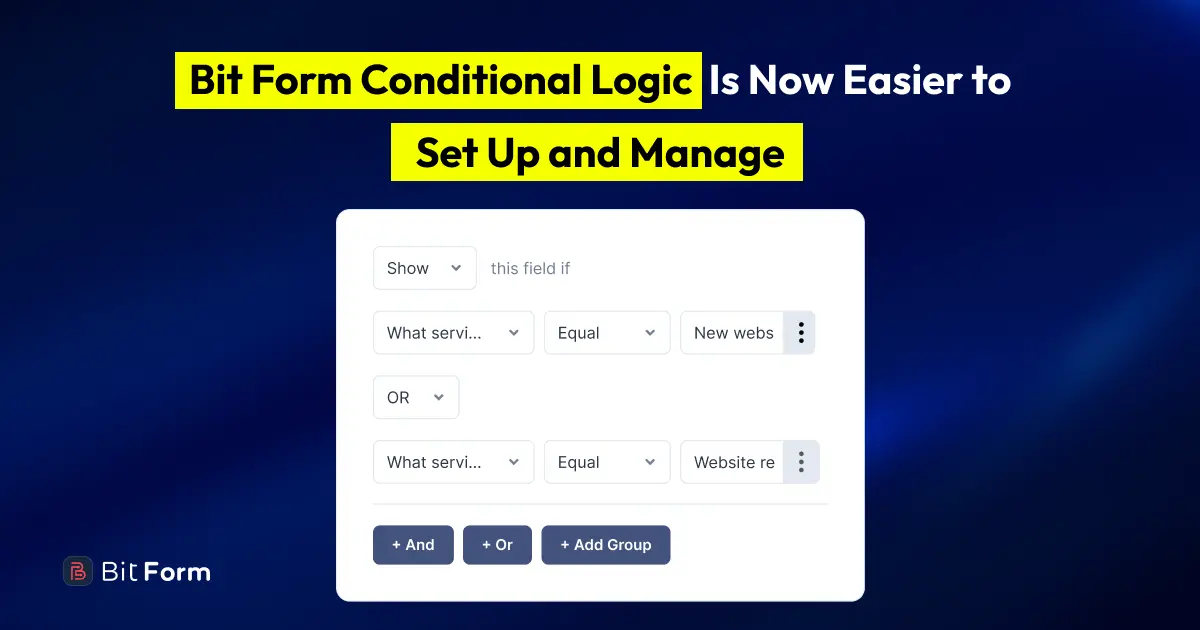
Bit Form V3.2.0 erleichtert die Einrichtung und Verwaltung bedingter Logik

