
 EN
EN  ES
ES  DE
DE  PT
PT  IT
IT  JA
JA Create Customized WordPress Contact Form in 2 minutes
Let’s be real: most people hate filling out contact forms, and most website owners hate building them even more—especially when you hit a paywall just to add basic custom fields. If you’ve ever searched “how to create a customized WordPress contact form” and felt frustrated by all the limitations and locked features, and fields, you’re not alone.
That’s exactly why we’re diving into Bit Form— with a form builder plugin like Bit Form, you can customize a contact form’s fields and design without breaking a sweat, right in the free version. With its wide functionality, you can take the user experience up a notch. No hidden costs, no “upgrade to unlock” popups, just smooth, flexible form building.
In this guide, I have shared how to create a customized WordPress contact form with custom fields and styling. As a bonus, you will learn best practices to improve form submission rates without paying extra or settling for a boring, generic form.
See How Custom Forms Driving Better Results Across Multiple Metrics!

A basic contact form – a handful of leads. A polished one—endless opportunities! As shown in this pie chart,
The form completion time of a well-designed contact form is 2.9%. But when it comes to a basic contact form design, the completion time gets to 10-15%.
Again, the user trust of a customized contact form is 35%, whereas a basic contact form can gain users’ trust by 20-25%.
The conversion rate of a smart contact form is 26.5%. And it’s only 10-15% for a normal contact form. Well, you can see the gap straight away!
And the lead quality of a smart contact form is 29.4%. On the other hand, it is 15-20% of a basic contact form.
Lastly, the abandonment rate of a smart contact form is 5.9%. And it is 40-50% of a basic contact form. The difference is huge. So, you know the drill now!
You Can Generate More Leads with a Smart Custom WordPress Contact Form Design—Here’s Why!
A lower conversion rate is a real pain for every business owner. The frustration hits the roof when you can’t figure out its cause. Well, a valid reason behind decreased sales is the lack of a smart contact form design. To be exact, there is a night and day difference between a basic and smart contact form. When you optimize form design for conversions, you captivate users’ attention and increase conversion rates. Ready to learn how? Read the points below to know it all:
Effective Lead Qualification
A good contact form design can get you quality leads real quick. And when I say this, I am not talking about a random form just tossed in there! A smart form design includes both: custom fields + style.
If you design a form that aligns with users’ needs and tastes, they won’t give it a second thought to fill out the contact form. This whole deal provides you with quality leads and boosts conversion rates.
Professionalism & Credibility
A chaotic contact form doesn’t look professional. Besides, it leaves a bad impression on the user’s mind. Well, I can bet on it – you don’t want to deal with that. So, if you really want to create a brand impression, your contact form should look professional and match your brand’s color. This move gives credibility to the brand and increases its reputation.
Reduced Friction
Are you aware that the biggest factor contributing to a lower conversion rate is friction in contact forms? These frictions include lengthy forms, ambiguous questions, poor mobile responsiveness, and a lack of clear guidance. Well, a well-designed contact form doesn’t have friction issues. These forms are conversational and easy to understand. As users find reduced friction in contact forms, chances are they will turn into a conversion.
Case Examples That Show The Effect Of a Smart Contact Form Design!
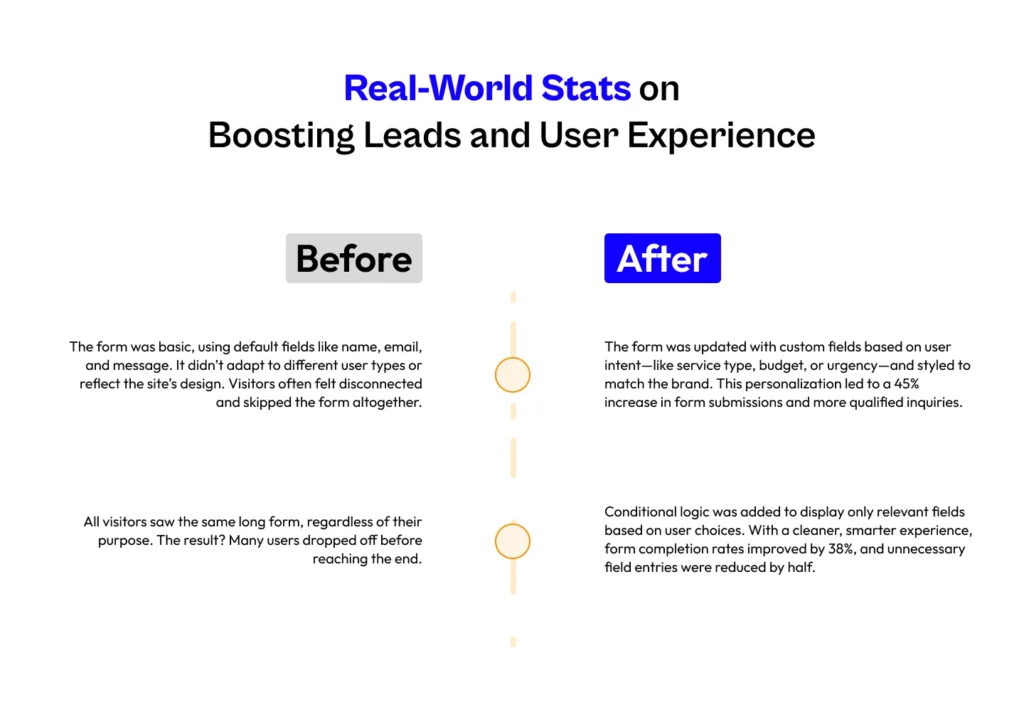
A company’s contact form had previously experienced lower conversion rates. Once they changed it to a dynamic contact form, the form submission boosted the conversion rate!
Another case example shows that a contact form had a higher abandonment rate. But they improved the form by adding conditional logic, which reduced the abandonment rate and gave them better results.
Discover Powerful Advanced Contact Form Customization Options
Name, email, message – and boom, you’re done? This is where businesses mess things up! So, what’s the fix here? Well, you must use advanced features to enhance form functionality. And only having a functional form – that’s not going to make the cut!
You should also make the contact form visually appealing. To implement the following things, you have to know a few powerful advanced contact form customization options. So, scroll down to learn about them:
Multi-Step Forms
Users often find it difficult to fill out a lengthy form. But the solution is easy. If you want to add several fields to your contact form, you can do it in a multi-step design. With this trick, potential customers will instantly fill out the contact form. But make sure that the fields are relevant and match user needs. Otherwise, even a multi-step form can’t get you quality leads.
Conditional Logic
The conditional logic feature enables you to execute different actions when specific conditions are met. With this setup, you can create dynamic contact form fields. From creating a mortgage calculator to setting up an online product order form, conditional logic can handle it all.
Spam Protection & Security
Are you tired of bots spamming your contact form? Well, you must add a reCAPTCHA or hCAPTCHA field to protect the form from spam attacks. But choosing between these two depends on your needs. If you want a simple spam protection feature, then hCAPTCHA is the right choice.
But if you want advanced spam protection, which provides the easiest solution for users, then go for reCAPTCHA. Well, some form builder plugins like Bit Form provide you with built-in spam protection fields, which eliminate the need for manual coding.
Theme
Your contact form design matters – a generic-looking form just doesn’t convert! So, what’s the fix? You must design the form in a way that captivates the user’s mind. From the field to the background, the form’s colors should complement each other. Besides, it should match your brand’s vibe. With this approach, you can create a good impression on the user’s mind.
So, you want better results? Then you must use a plugin that allows you to edit every detail just the way you want. Well, I recommend the Bit Form plugin, as this wordpress form plugin gives you endless customization options. With this plugin, you can design the form using common or individual elements and give it a professional look.
Create a Customized WordPress Contact Form Step by Step Guide
Using the Bit Form plugin, you can use 45+ smart fields and customize them based on your needs. Well, want to know how to customize a WordPress contact form efficiently? Read out the step-by-step guide below:
Step 1: Install Bit Form
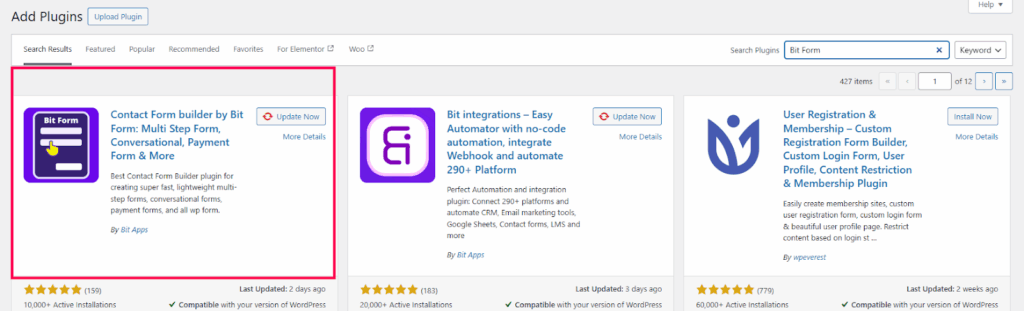
At first, go to add plugins > Search plugins. Then search for Bit Form. Further, install and activate the plugin.
Step 2: Click on Create Form
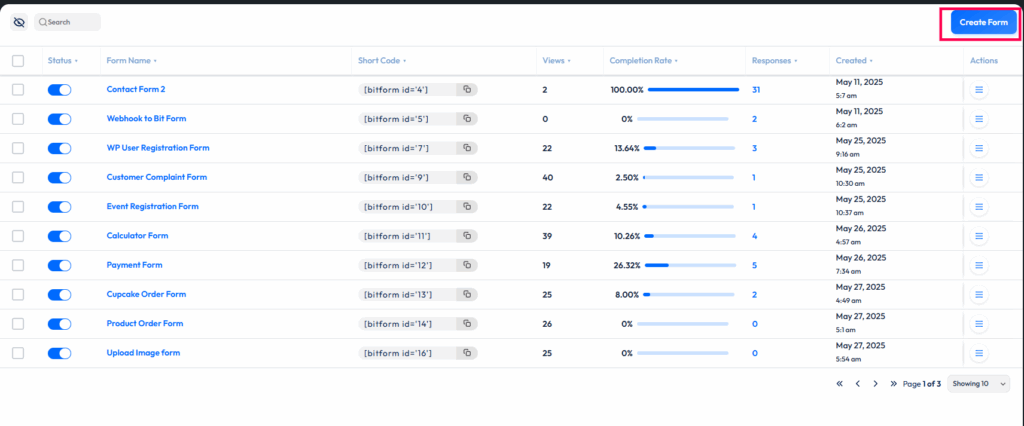
Now, go to the Bit Form dashboard > Create Form
Step 3: Customize Fields

Now, you can search for preferred fields in the search option. I have dragged the “First Name” field and changed the label to “Name”. You can follow the same way to create custom form fields.
Step 4: Add Fields in the First Step
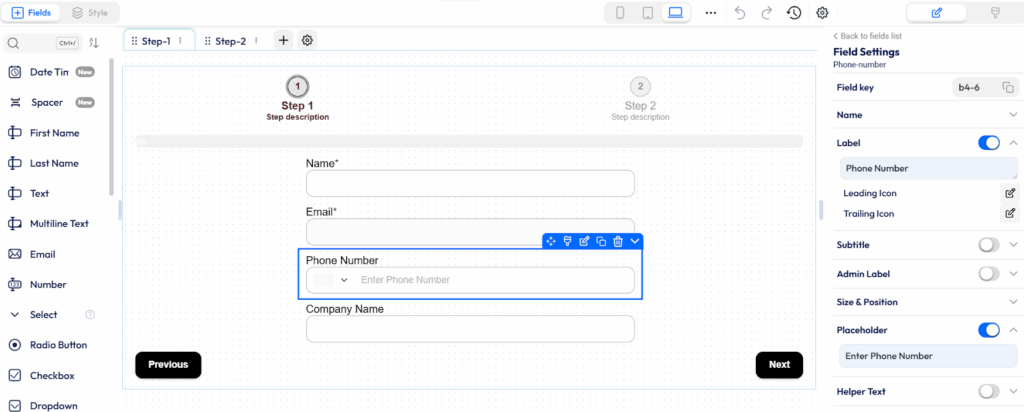
Here, I have added the following fields: Name, Email, Phone Number, and Company Name in the first step. As I am creating a multi-step form, I will add other fields in the second step.
Step 5: Add Fields in the Second Step
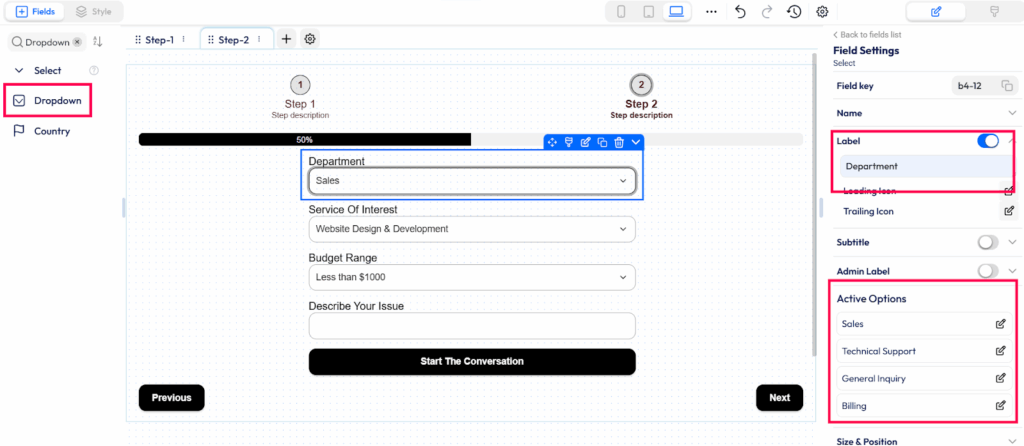
Here is step 2. In this section, I have added Department, Service of Interest, Budget Range, and a Describe Your Issue field. The first three fields here are dropdown fields. You can drag this field from the sidebar and change its label. Also, you can edit the options through the “Active Options” feature.
Step 6: Use Conditional Logic
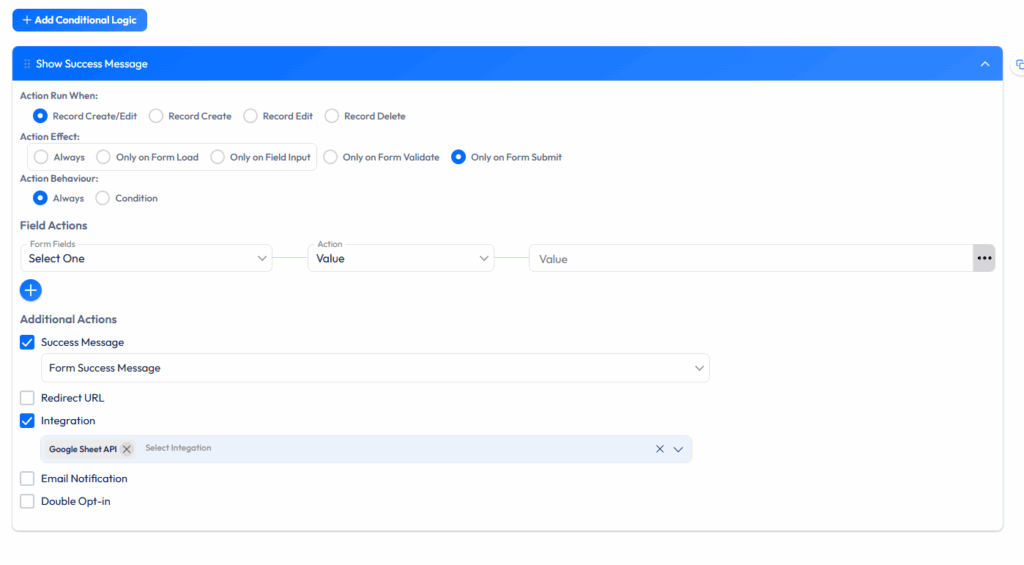
Here, I have added conditional logic to the form. Now, go to Settings > Conditional Logic. Click on Integrations and select the desired integration. Here, I have integrated Bit Form to Google Sheets. Therefore, the Google Sheets document will log customers’ responses whenever they select a specific department in the Bit Form.
 Note
Note
If you don’t know how to integrate Bit Form to Google Sheets, you can check the document here.
Styling The Contact Form
Now, let’s style the contact form!
Step 1: Choose the Theme
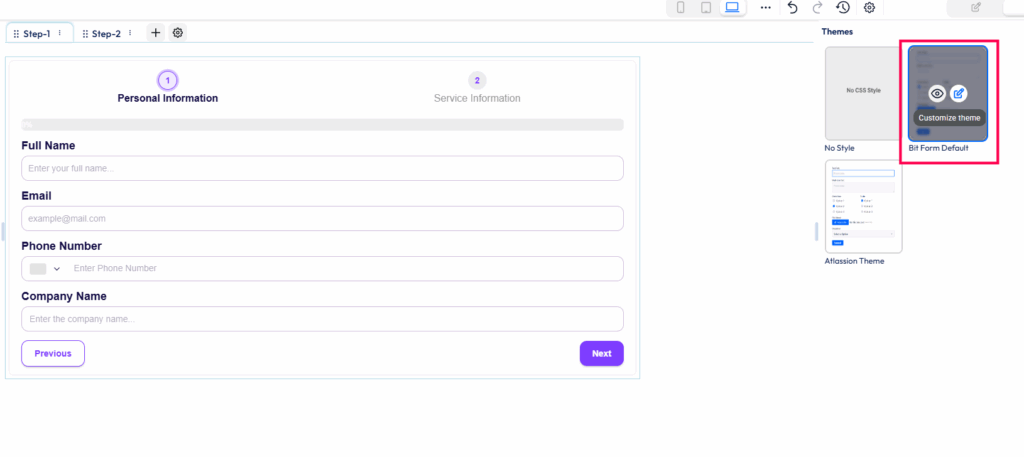
Go to the theme customization feature. You have three options: No Style, Bit Form Default and Atlassian Theme. Choose one of these three.
Step 2: Change Background Color
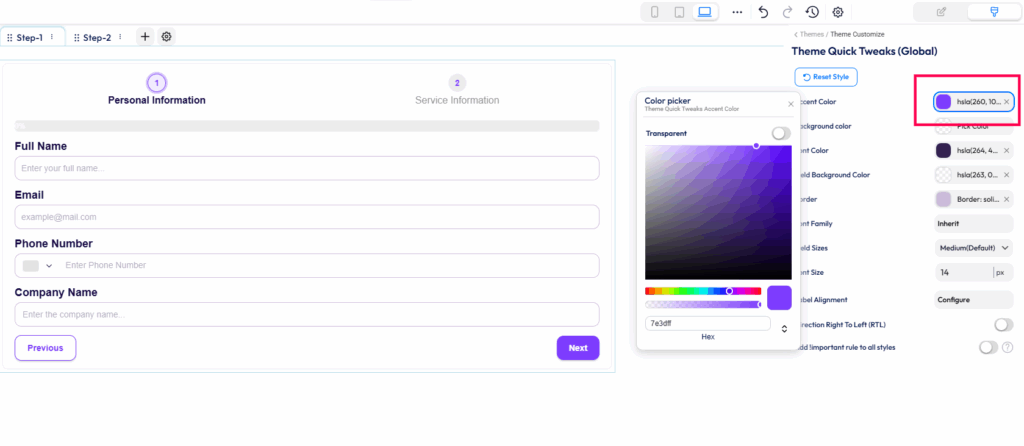
Here, I have chosen the Bit Form default theme. I have used the “Theme Quick Tweaks” option and changed the accent color.
Step 3: Change Border Color
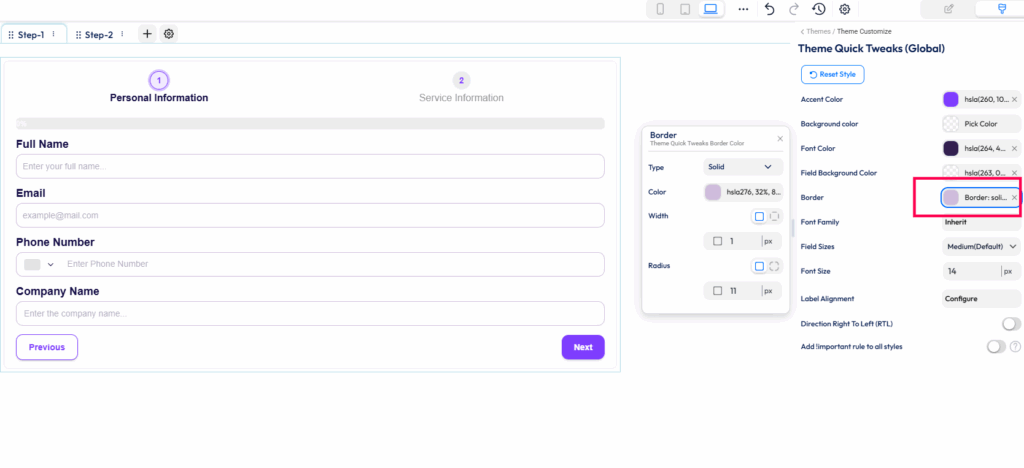
Here, I have changed the form field’s border color.
Step 4: Change Font Size
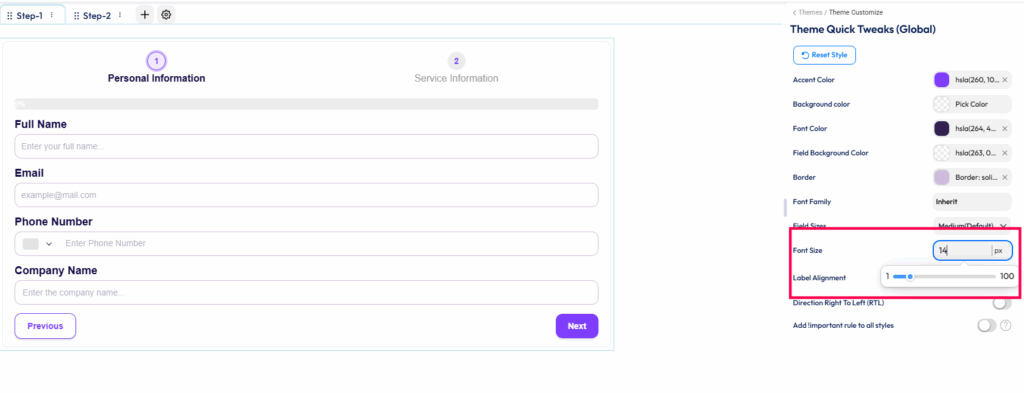
Now, I have kept the font size to 14 px.
Step 5: Common and Individual Elements
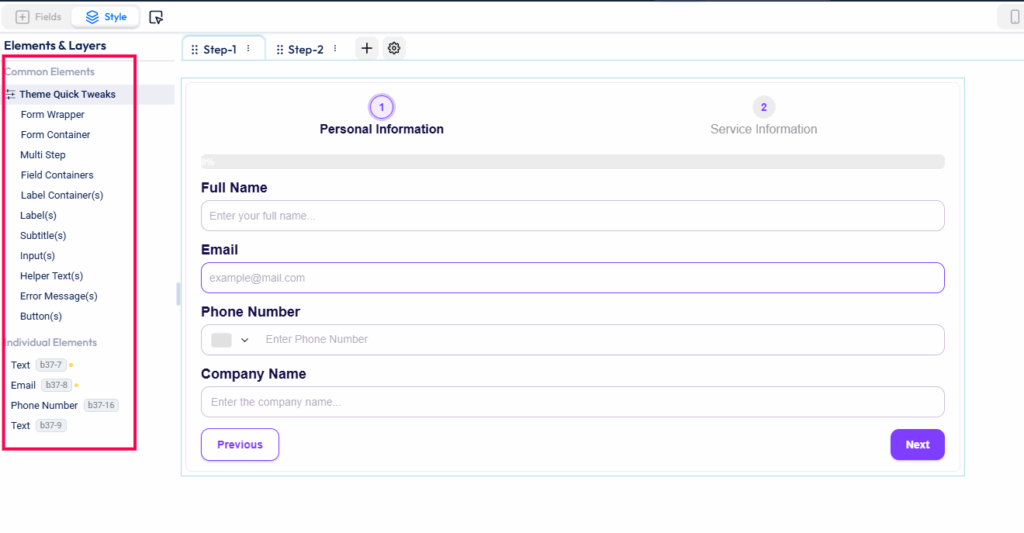
Well, you can also edit the form field’s every detail using the common and individual elements.
Step 6: Publish The Form
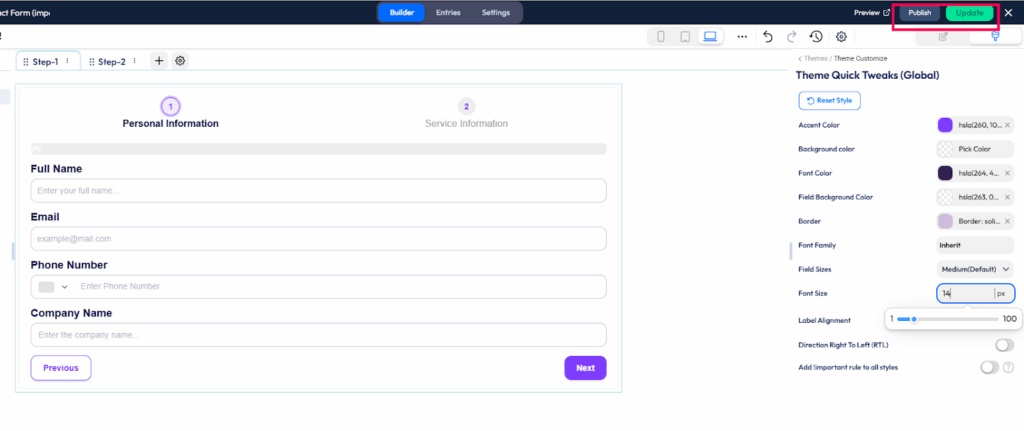
Now, click on Publish > Update.
Step 7: Copy the Short Code

Copy the Short Code and paste it in the WordPress post section.
Test The Live Form
The customized contact form is ready!
Maximize Contact Form Submissions with These Expert Tips!
Are you looking to design a contact form people can’t ignore? But how to pull this up now? Well, you must follow contact form UI/UX tips to create a compelling design that makes users complete your form at first glance! Here are the contact form best practices that drive more form submissions –
Keep a Compelling CTA
A generic call to action won’t get you quality leads! The solution? Create a compelling CTA that is actionable. This approach creates a sense of urgency for the user to perform a certain task.
Well, creating only a good call to action is not enough. You should use a tempting color for the CTA button. It grabs the audience’s mind and leads them to take faster action.
Mobile-Friendly Design
A mobile-friendly contact form design can get you more leads than you think! Without a mobile-friendly form, you would be losing tons of leads, as no one wants to fill out an unstructured form. But what exactly is a mobile-friendly design? Well, it simply means a responsive form that adapts to different devices such as phones, tablets, and desktops.
Besides, the form should have minimal fields, clear labels, and instructions, which are easier for users to understand. Well, a drag-and-drop builder would be the perfect choice, as you don’t need manual coding here. So, the form would look as perfect as a chef’s finest dish!
Privacy Assurance
Users can get doubtful when a form asks them for personal or sensitive information. As a result, they may frequently choose not to complete forms that request detailed information.
Well, a GDPR compliance field can spare you from the trouble. With this field, users can know why and how their information will be used. So, you can gain their trust quickly and get more form submissions.
Multi-Step Form
As I have mentioned previously, a multi-step form is conversational-friendly.
So, when you want to use multiple fields in a contact form, you can easily use a multi-step design to build your form. This approach reduces cognitive load and increases form submission rate.
Wrapping It Up
No more stressing over a lack of leads – customizing your contact forms can tackle most of the challenges. With a form that aligns with the user’s needs and is visually attractive, you can attract quality leads to your business. But choosing the right plugin for designing user-friendly forms matters the most here.
A contact form’s design or form layout customization decides whether the user will fill out the form or not. So, my recommendation is Bit Form – a WordPress drag and drop form builder plugin that offers extensive features. From customizing fields to styling the form, this plugin can handle it all. Want more information about this plugin? Feel free to contact us right away!
Got Questions? We’ve Got Answers!
Why Should I Customize My Contact Form?
Customizing a contact form based on user needs can bring you quality leads. Precisely, a user feels more inclined to fill out a form when it is conversational, familiar, and easy to understand. So, why wait? Customize your contact form right away based on users’ needs and gain better leads.
How Do I Make My Contact Form Mobile-Friendly?
You can make a contact form mobile-friendly by creating a simple and clean layout. Also, the contact form should adapt to different screen sizes. By creating a mobile-friendly form, you provide a better contact form user experience. This approach can make users fill out the form instantly.
Will Customizing My Contact Form Affect Page Speed?
Well, customizing the contact form can affect page speed when the form has several fields or a lot of CSS styles. So, you can either use a multi-step design or minimal fields in a contact form. By taking essential steps, you can prevent your page from slowing down.
Can I Style My WordPress Contact Form without Coding?
Yes. You can definitely style a WordPress contact form without coding. A form builder plugin can help you build a form without the need to code for several hours. Besides, if it is a drag-and-drop form builder, then building a form becomes as easy as pie.
Can I Track How Users Interact with My Contact Form?
Yes. Many form builder plugins allow you to track how users interact with your contact form. For instance, using the Bit Form plugin, you can easily know how many people viewed your form, its completion rate, and its responses.
How do I Protect My Customized Contact Form from Spam?
You can enable reCAPTCHA or hCAPTCHA to protect your contact form from spam. With these bots’ protection features, you can save yourself from potential headaches and manage contact form responses in an efficient way.
Can I easily adjust the layout and positioning of form fields in Bit Form?
Yes, Bit Form’s visual drag-and-drop interface lets you quickly rearrange fields, create multi-column layouts, and adjust field spacing—no coding needed! It’s designed to ensure your forms are visually appealing and align perfectly with your website layout.
How can I add placeholder text or hints inside fields in Bit Form?
Bit Form makes adding placeholder text simple. Just click on the field settings and enter your placeholder or hint text clearly. These hints guide users on what information to input, improving completion rates.
Does Bit Form integrate smoothly with CRMs, Google Sheets, and email marketing tools?
Definitely! Bit Form effortlessly integrates with 300+ popular tools through Bit Integrations. Connect your form submissions to CRMs, Google Sheets, email marketing platforms, and more, streamlining data collection and automating workflows.

Related Blog

How to Add a “How Did You Hear About Us” Survey in WordPress

How to Prevent Spam Form Submissions in WordPress